
How to Fix Common Dubsado Workflow Errors
By Ema Katiraee, Certified Dubsado Specialist
If you’ve ever set up a Dubsado workflow only to be met with a vague error message, you know the feeling of instant dread. These messages often feel like they’re written in another language, leaving you wondering if your automation is actually working - or if your client just received nothing at all.
I often hear from clients who run into these same tech glitches. The good news? Most of these errors are simple fixes once you know how to decode the jargon.
Below is your "cheat sheet" to the most common Dubsado workflow errors, what they actually mean, and exactly how to fix them.
Common Errors Covered in This Guide:
Email Issues: Invalid header or authorization failed, Rate limits, insufficient permissions.
Timing and Setup Issues: "Too late to send" and "Form to watch for this action not found."
Payment Issues: Generic declines and Payment processor setup.
Technical Glitches: "Cannot read property 'replace'" or 'date'.
⚠️ Important: When a workflow hits an error, Dubsado automatically pauses it. After fixing the issue, remember to click 'Paused' to toggle the status back to 'Active'. Next, click 'Force Now' or 'Retry' for the action that had the error to continue.
Email Connection Issues
Invalid header or authorization failed or invalid_grant
These messages points to a connection problem between your email and Dubsado. It usually means your email integration is not set up correctly or has expired.
How to fix it:
Go to Settings → Emails
Click the trashcan icon to disconnect your email from Dubsado
Reconnect your email account.
Retry the failed workflow action
You can also open a test project and send an email to yourself to confirm the connection works.
Rate limit exceeded
This message means you are trying to send too many emails at once. Email providers set limits to protect accounts from spam. Once you hit the limit, you cannot send more emails until enough time has passed.
How to fix it:
Wait before sending again.
Insufficient Permissions
This happens because when you connected Gmail, you did not check all the required boxes. Without the needed permissions, Dubsado cannot send emails.
How to fix it:
Go to Settings → Emails
Disconnect and reconnect your email account
Timing and Setup Errors
Too late to send
This error happens when the trigger you set in the workflow has already passed, or it was not approved within 3 hours.
For example, if you scheduled a form to go out 6 weeks before the project start date, but you started the workflow 3 weeks before the start date, the action will fail.
How to fix it:
Click Edit on the workflow action
Change the trigger to the current date or another date in the future
Click on Paused to restart the workflow, since it stops running after the error
Click Retry or Force Now to run the action again

Dubsado workflow error: Too late to send action. This task was supposed to go out a few weeks before the project date, but once the workflow was applied to the project that date had already passed.
Form to watch for this action not found
This error happens when you have a workflow action triggered after form is completed or after form is not completed, but you did not select which form to watch in the dropdown menu. Without that detail, Dubsado does not know which form should trigger the action.
How to fix it:
Click Edit on the workflow action.
Select the correct form from the Form to watch dropdown
Click Apply
Click on Paused to restart the workflow, since it stops running after the error
Click Retry or Force Now to run the action again
Repeat these steps in the workflow template as well to prevent the same issue in the future

Dubsado workflow error: Form to watch for this action not found
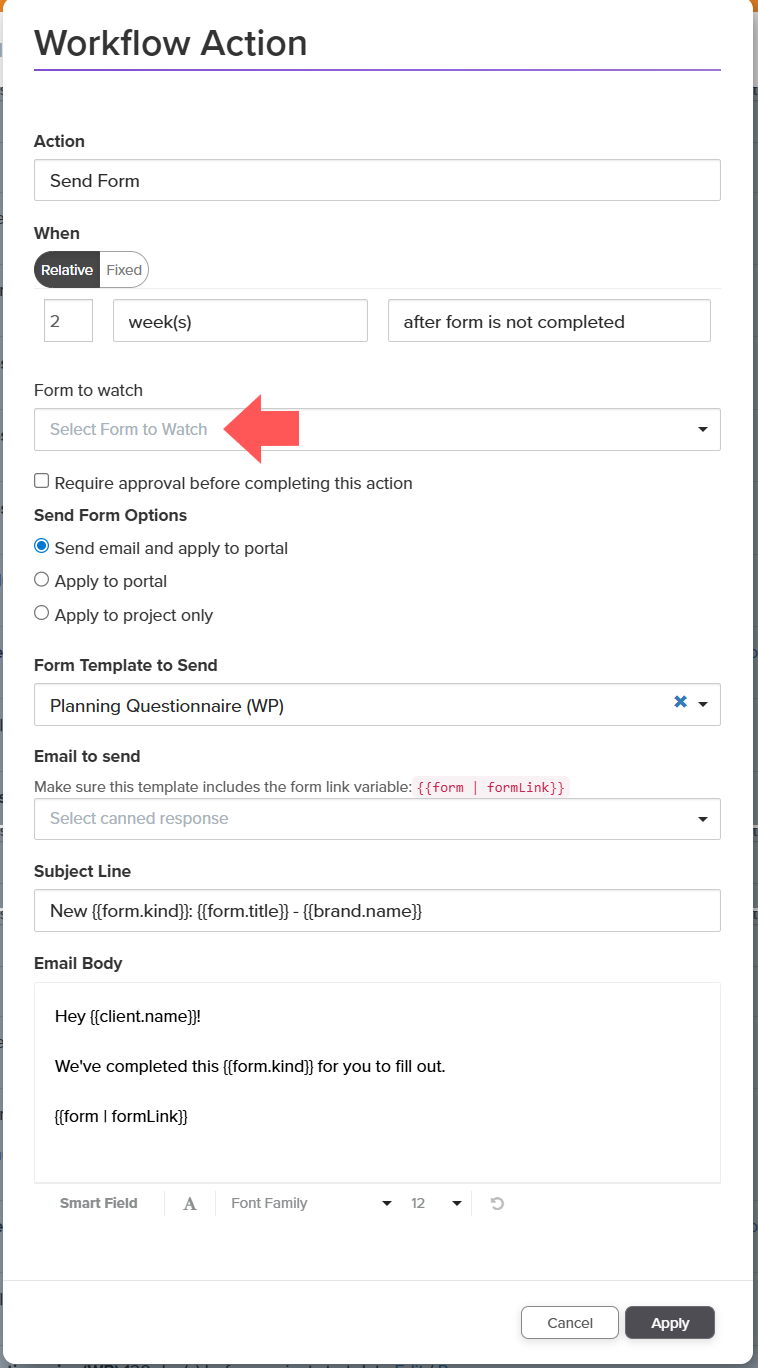
How to fix ‘Form to watch for this action not found’ workflow error
Client and Payment Issues
Generic Decline
This means the client’s card was declined.
How to fix it:
Ask the client to use a different payment method
Account Cannot Make Live Charges
This happens when your payment processor is not fully set up.
How to fix it:
Go to Settings → Payments and invoices
Complete your payment processor setup
Invalid To Header
This appears when the client’s email address is in the wrong format.
How to fix it:
Update the client’s email address with a valid email format: example@mail.com

Dubsado workflow error: Invalid To header
Address Must Be Supplied
This means the project does not have a client email address.
How to fix it:
Open the project and add the client’s email
Technical Errors
Cannot read property ‘replace’ of undefined
This error appears when a workflow tries to send an email, form, or scheduler but something is missing. The two most common reasons are:
The client’s profile does not have an email address.
Your email is not connected to Dubsado.
How to fix it:
Make sure the client’s project includes an email address
Reconnect your email under Settings → Emails
⚠️ Watchout when adding clients manually to Dubsado, as the email field is not mandatory.

Dubsado workflow error: Cannot read property ‘replace’ of undefined
Cannot read property ‘date’ of undefined
This error comes up when you use a payment plan date smart field inside an email that is sent through a workflow.
How to fix it:
Only use payment plan smart fields in payment plan reminder emails, not in workflow emails

Dubsado workflow error: Cannot read property ‘date’ of undefined. I added a payment plan smart field inside of a workflow email
Cannot read property ‘invoice’ of undefined
This error appears when Dubsado cannot find the invoice it needs for a workflow action. It usually happens when a proposal is submitted, but Dubsado does not know which project to generate or connect the invoice to. In some cases, the workflow may also be trying to reference invoice data that does not exist.
How to fix it:
Go to the project and confirm there is an invoice in the Invoices tab
Double-check that any invoice-related actions or triggers are set up correctly in your workflow
Refresh your browser tab, then click Retry on the workflow action
TLDR
Dubsado error messages can seem vague, but here is what they actually mean:
Email connection issues
Invalid header or authorization failed / Invalid_grant: your email integration needs to be reconnected.
Insufficient permissions: reconnect Gmail and check all permission boxes.
Rate limit exceeded: too many emails sent at once. Wait before sending more.
Timing and setup errors
Too late to send: the trigger date has already passed or was not approved within 3 hours.
Form to watch for this action not found: you used a form-related trigger but did not select which form to watch.
Client and payment issues
Generic decline: the client’s card was declined.
Account cannot make live charges: your payment processor is not fully set up.
Invalid To header: client email format is incorrect.
Address must be supplied: no client email address on the project.
Technical errors
Cannot read property ‘replace’ of undefined: client email is missing from the project or your email is not connected.
Cannot read property ‘date’ of undefined: a payment plan smart date is being used in a workflow instead of inside the payment plan.
Cannot read property ‘invoice’ of undefined: no invoice exists in the project, or the workflow is referencing invoice data that does not exist.
Once you know what each message means, you can troubleshoot quickly and keep your workflows running smoothly.
Video Tutorial: Troubleshooting Workflow Errors in Dubsado
If you prefer to see this in action, watch the video below where I walk through different workflow errors in Dubsado and how to fix them.
What would your client experience look like if it actually ran itself?
Take the free quiz to find out what your setup is missing and where to start.
Ready to streamline your Dubsado setup?
Error messages are only one part of the challenge. If you feel like you are spending too much time troubleshooting or second-guessing your setup, that is a sign your system may need an expert to help you.
When we work together, I handle the heavy lifting for you. I build workflows that are not only error-free but also designed to save you time, keep your projects on track, and give your clients a seamless experience.
👉 Book a discovery call today and let’s talk about creating a Dubsado setup that works behind the scenes, so you can spend less time fixing tech issues and more time serving your clients.