
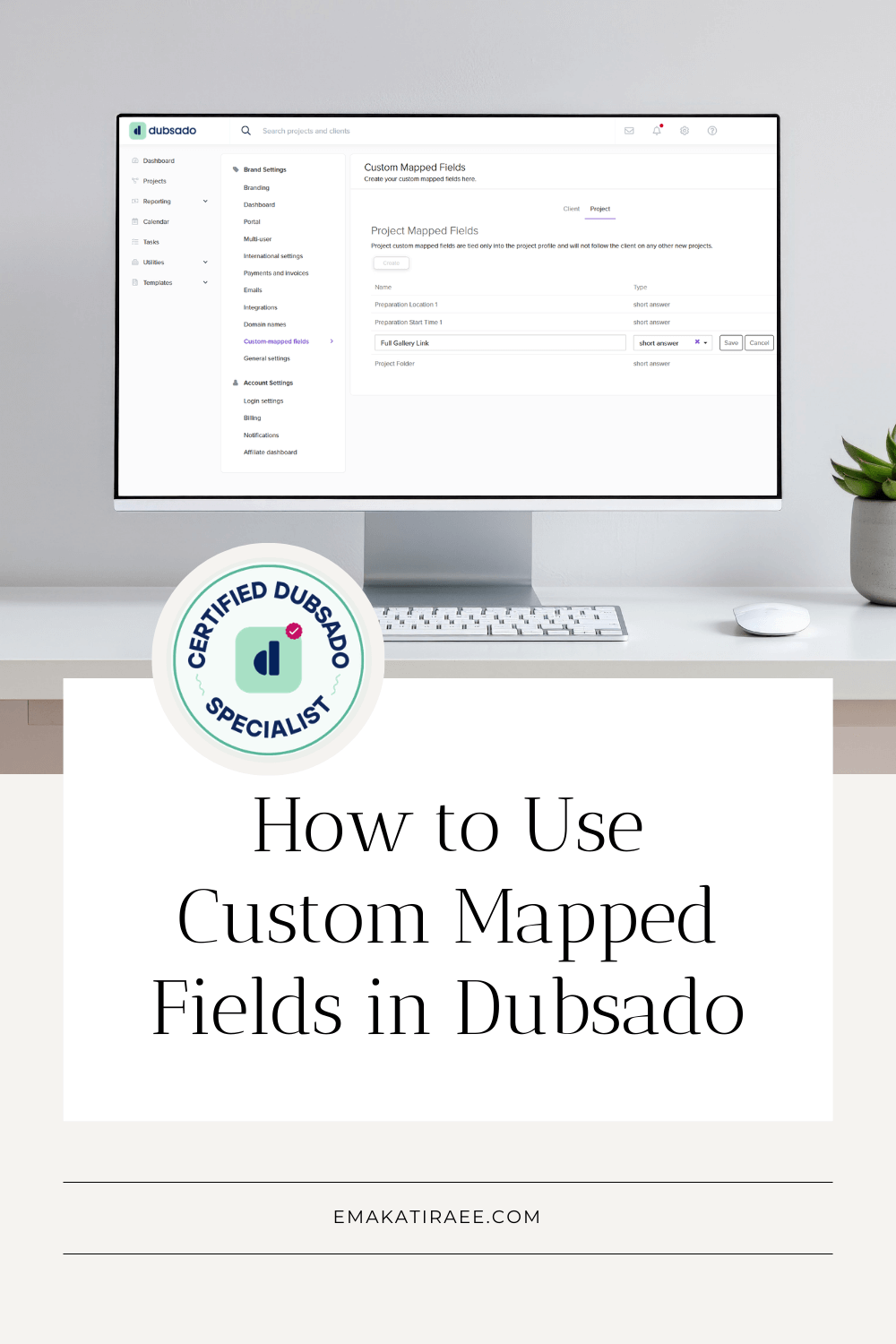
How to Use Custom Mapped Fields in Dubsado
By Ema Katiraee, Certified Dubsado Specialist
Custom mapped fields are a powerful and underused features in Dubsado.
When used correctly, custom mapped fields let you store information once and reuse it everywhere. Emails, forms, proposals, contracts, and workflows can all pull in the same information automatically, without you retyping links or details over and over again.
If you are newer to Dubsado or want a high level overview of how the platform works, this guide explains what Dubsado is and how it works for service based businesses.
In this post, I will walk through:
What custom mapped fields are in Dubsado
The difference between client mapped fields and project mapped fields
The types of custom fields you can create
Real examples for sharing Google Drive links and external portals
How I personally use custom mapped fields with Zapier and Google Drive
If you have ever copied and pasted the same link into multiple emails or forms, this will make your Dubsado setup significantly easier to manage.
What Are Custom Mapped Fields in Dubsado
Custom mapped fields are smart fields you create inside Dubsado that store information and can be reused anywhere smart fields are supported.
Once a value is entered into a mapped field, you can insert that value into templates and automated content, including:
Canned Emails
Forms: Questionnaires, Proposals, Contracts and Sub-Agreements
This is what allows the same information to appear consistently across multiple emails, forms, and workflows without manual editing.
Instead of manually updating links or details in multiple places, you update the field once and Dubsado handles the rest.
Client Mapped Fields vs Project Mapped Fields
This is the most important distinction to understand.
Client Mapped Fields
Client mapped fields are tied to the client record, not a specific project. That means the information follows the client across every project they have with you.
These are best used for information that does not change between projects, such as:
Birthday
Preferred name
Pronouns
Custom client portal links to an external platform
Once you enter this information for a client, it is available in all current and future projects for that client.
Project Mapped Fields
Project mapped fields are tied to a specific project. That means they must be filled out for each new project, even if the client has worked with you before.
These are ideal for information that changes from project to project, such as:
Google Drive project folder links
Project specific intake documents
Shared planning boards
Custom resources unique to that project
You enter the value once per project, and then reuse it everywhere inside that project.
Types of Custom Mapped Fields You Can Create
In Dubsado, there are only two types of custom mapped fields you can create.
Short Text Fields
Short text fields are the most commonly used.
They are perfect for:
URLs
Folder links
Names
Birthdays
This is the field type you will use for Google Drive links and external portals.
💡Tip: I recommend asking for birthdays as text and not as a date. Adding dates that are not within one to two years of the current date is currently very cumbersome and frustrating in Dubsado.
Date Fields
Date fields are used when you want Dubsado to format and reference a date consistently.
These work well for:
Contract start dates
Custom project milestones
Access expiration dates
Choose the field type based on how you plan to use the information, not where it will appear.
How to Create a Custom Mapped Field in Dubsado
Step 1: Create the Custom Mapped Field
In Dubsado, go to Settings
Go to Custom Fields
Click + New client field or + New project field depending on what you want to create
Enter the Field name. Use a clear name, like “Wedding Budget Spreadsheet” or “Scope of Work File”
Select the field type from the dropdown menu: short text or date
Click Create
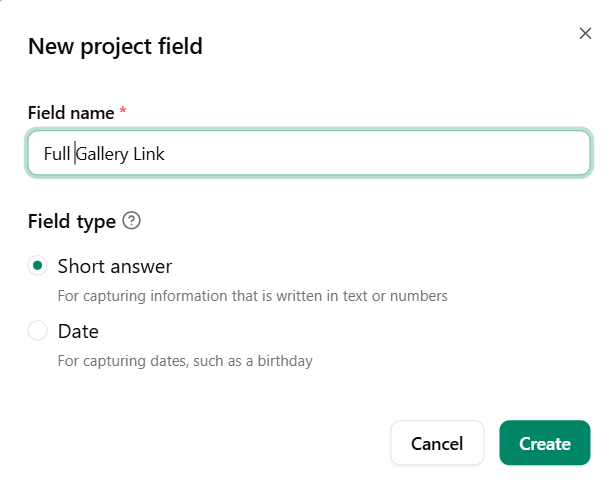
Create a custom field in Dubsado
Step 2: Add Information to the Custom Mapped Field Inside the Project
Once the mapped field is created, you now have to enter information into it from the client project.
In Dubsado, go to the client project
For Client Mapped Fields, click on the Edit (pencil icon) beside the Client Information
Scroll to the bottom of the section to find the Custom contact fields
Enter the information
Click Save
For Project Mapped Fields at the bottom of the Project info section, click on the Edit (pencil icon) beside Custom Fields
Enter the information
Click Save Changes
💡Tip: for links, make sure you use the full URL including https:// or the link will appear as plain text instead of a clickable link.
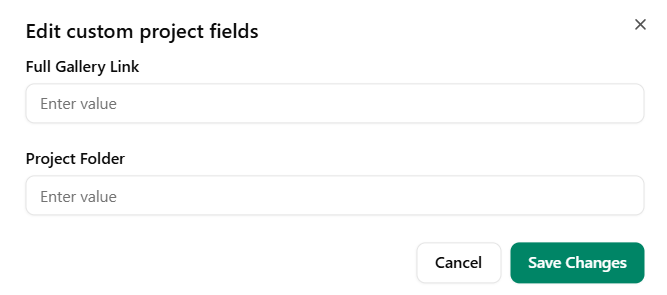
Add information in Custom project fields
Step 3: Add the Smart Field to Canned Emails or Form Templates
To have the information from a custom mapped field automatically appear inside emails or forms you send to your clients, you need to insert the smart field reference inside the content, exactly as it appears in Dubsado.
When you are working inside Dubsado, always insert smart fields by selecting them from the smart field dropdown menu to make sure you are using the correct field.
Add the Smart Field to Forms
Open the form where you want the information to appear.
Insert a text box
To insert a date or text value:
Click the Smart Field button in the formatting menu
Select the appropriate smart field from the Project or Client list
To insert as a button:
First, copy the smart field you want to use (the text + double brackets)
Write the text you want to display as the button label, for example “Wedding Timeline Document”
Highlight that text, and click the link icon to insert a link
Paste the smart field into the URL field
Check Button
Check Open in new tab. I recommend doing this, since it helps prevent clients from losing progress if they are completing a questionnaire.
Click Save
For example: If you have a project mapped field titled “Project Folder”, you would reference {{job.mappedFields.project_folder.value}} inside the form where you want that link to appear.
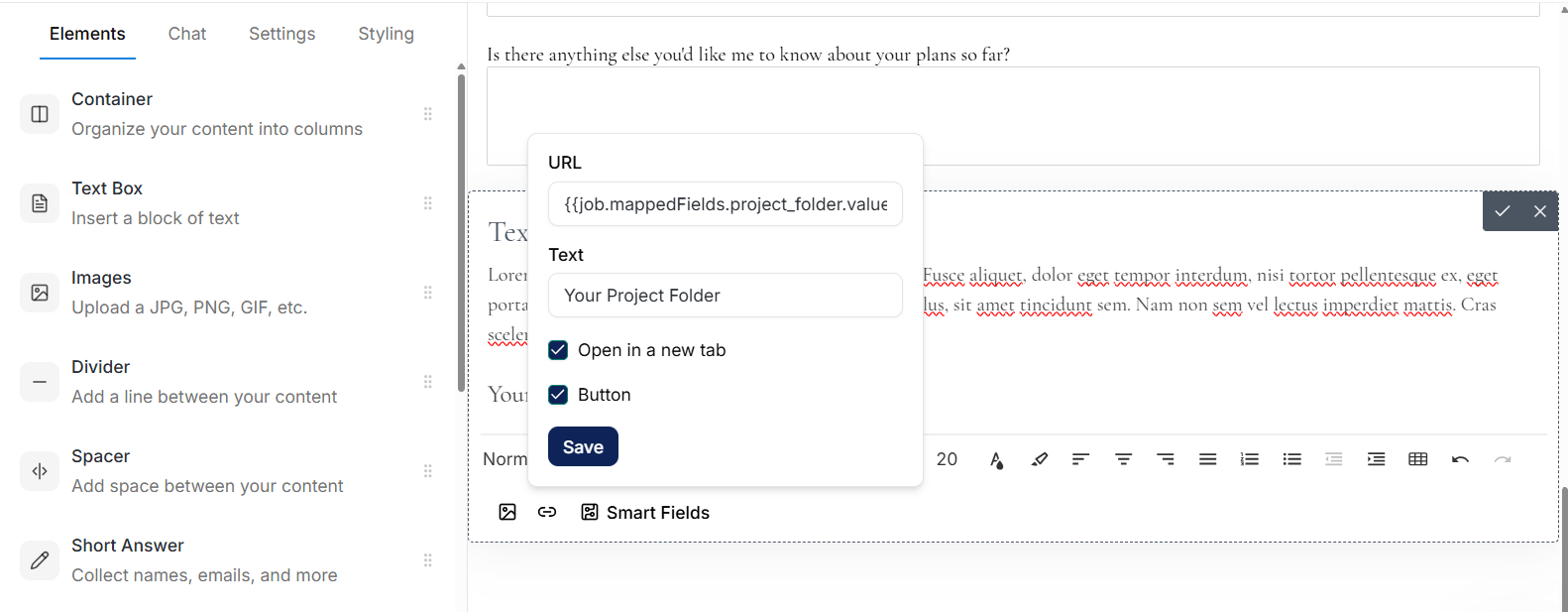
Add the button text, then add the smart field as the URL. Make sure to check ‘Open in new tab’
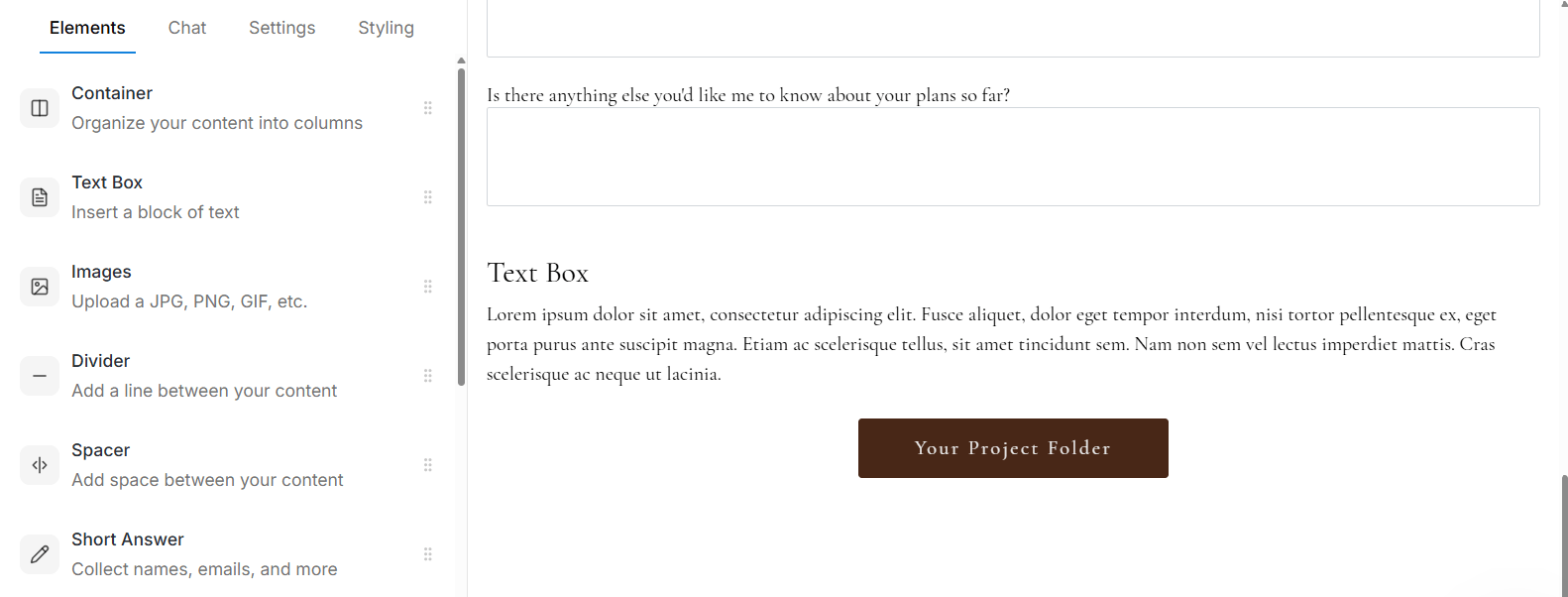
How the button looks once done
Add the Smart Field to Canned Emails
Open the canned email where you want the information to appear.
Inside the email composer or form text box, click Smart Fields
Select the smart field from the Project or Client list.
To add the smart field as a button, follow the same button steps used for forms above.
For example: If you have a client mapped field titled “Referrer” (the name of the person who referred the client), you would reference {{client.mappedFields.referrer.value}} inside the email so the referrer’s name appears automatically.
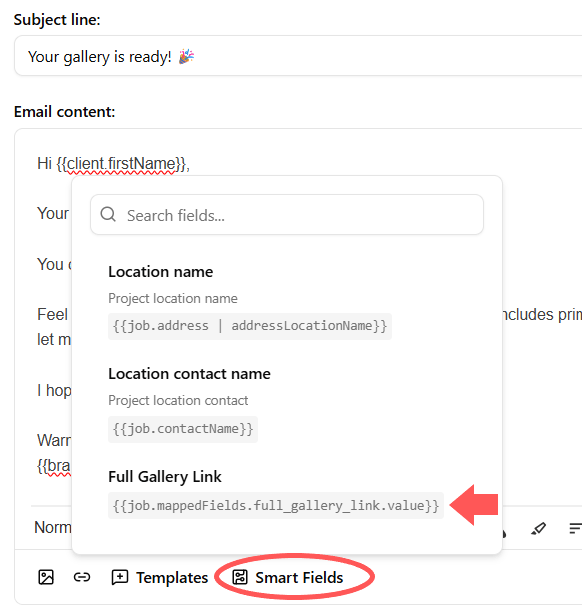
Select the mapped field from the Smart Field menu at the bottom of the email
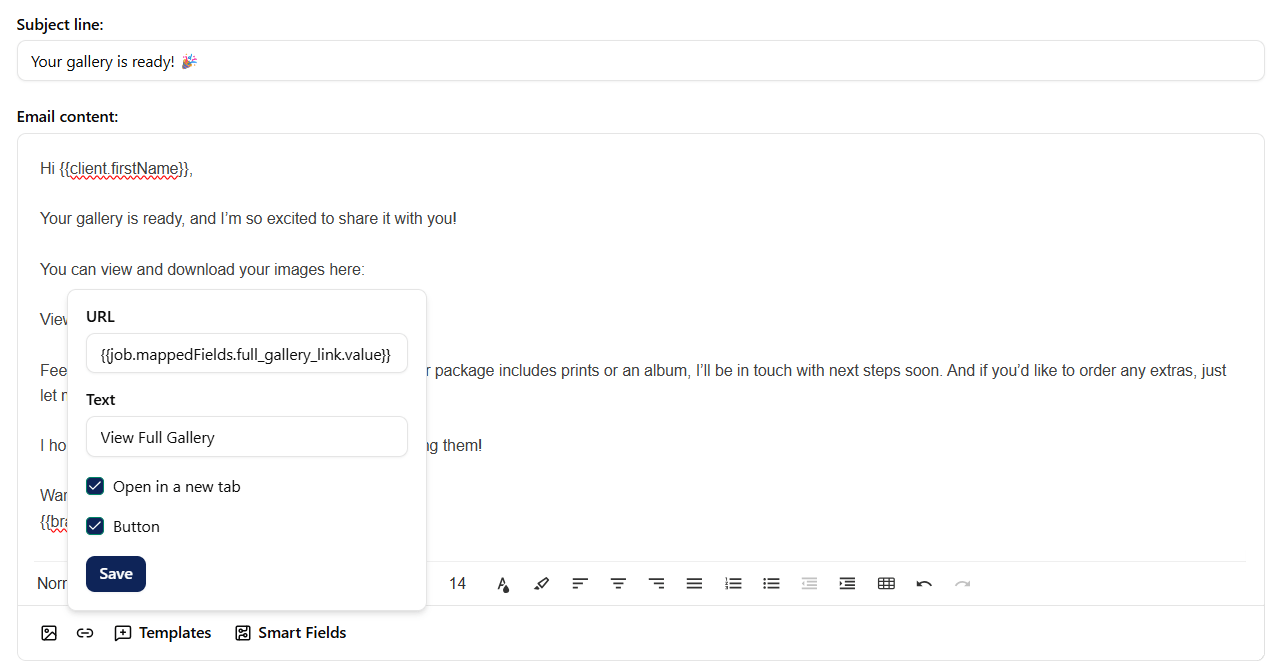
Add the mapped field as a URL link to a canned email template (can also do this for forms)
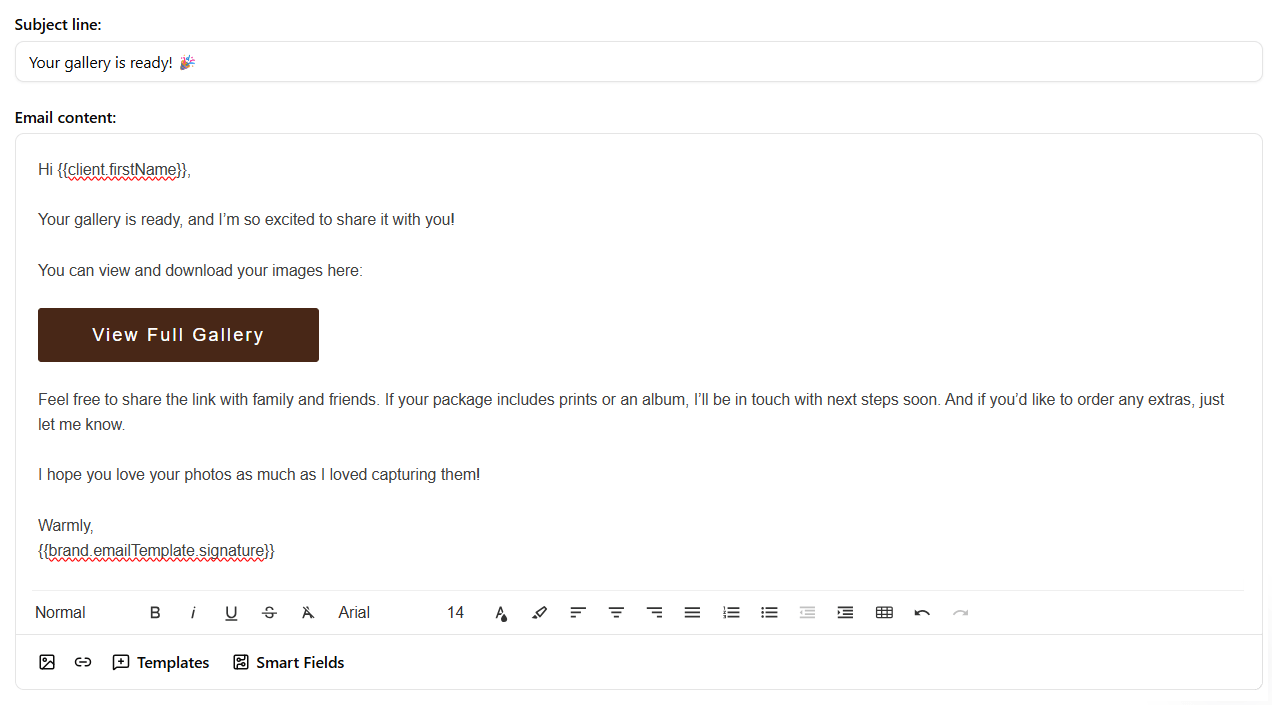
How the canned email template looks once you add the button
How to Use Custom Mapped Fields to Share Google Drive Folder Links
One of the best uses of project mapped fields is sharing Google Drive folders with clients. Instead of pasting a folder link into every email manually, you can store it once and reuse it everywhere.
Here is how that looks in practice:
Step 1: Create a Project Mapped Short Text Field
Create a custom mapped field with a clear name, like “Project Google Drive Folder”. Make sure it is a project mapped field and not a client mapped field.
Step 2: Add the Folder Link in Dubsado
Go to the clients project and paste the Google Drive folder link into that field.
Now the link to the folder will appear in all client emails, questionnaires, and reminder emails that reference that smart field.
Sharing Links to Platforms That Are Not Dubsado
Custom mapped fields are also perfect for linking to tools outside of Dubsado.
Examples include:
Notion dashboards
Airtable databases
Trello boards
Shared documents or trackers
This allows you to keep your workflows clean while still directing clients to the tools you use outside of Dubsado.
How I Personally Use Custom Mapped Fields with Zapier and Google Drive
When a client signs up, my system does a lot of work automatically before I ever open Dubsado.
Here is what happens:
Zapier creates a Google Drive folder using a predefined structure, including a main project folder, subfolders, and documents created from templates.
Zapier then emails me the links to those folders.
I paste those links into Dubsado as custom mapped project fields one time.
Once those links are stored, I can reference them inside emails and forms over and over without manually adding anything again.
This setup relies heavily on using Zapier to automate common admin tasks.
FAQ About Custom Mapped Fields
Should I use a client mapped field or a project mapped field? Ask yourself whether the information should follow the client forever or only apply to one project.
If it stays the same across projects, use a client mapped field.
If it changes every time, use a project mapped field.
Can clients see my custom mapped fields? Clients only see the value of a mapped field if you insert it into an email or form. They cannot see the field itself inside Dubsado.
Can I change a mapped field later? Yes. If you update the value inside the mapped field, it updates every future place where that smart field is used. Emails that have already been sent or forms that have already been submitted using the smart field, will keep the old value.
Can I use custom mapped fields inside workflows? Yes. Mapped smart fields work inside workflow emails and forms. They are especially useful in automated emails where you do not want to manually edit content.
What happens if I forget to fill in a project mapped field? If the field is empty, the smart field will appear blank. Using a to-do inside your workflow can pause the automation until the field is filled in, which helps prevent missing information.
TLDR
Custom mapped fields in Dubsado let you save information once and reuse it everywhere.
Use client mapped fields for information that stays the same across projects, like birthdays or external client portals.
Use project mapped fields for information that changes per project, like Google Drive folder links or shared planning tools.
Short text fields are ideal for links, while date fields are best for project milestones.
This setup eliminates repeated copying and pasting and keeps your workflows clean and consistent.
Video Tutorial: How to Create Custom Mapped Fields in Dubsado
If you prefer to see this in action, watch the video below where I walk through:
Creating client and project mapped fields
Deciding which type to use
Adding Google Drive links
Using those links inside emails and forms
Using Dubsado but Still Doing Things Manually?
If you are already using Dubsado but still manually sending emails, proposals, contracts, and invoices, there is an easier way.
I help clients turn their existing Dubsado accounts into systems that actually reduce manual work and support their full client process.
If you want to see how a custom Dubsado setup can help your business, book a free discovery call to get started.