

By Ema Katiraee, Certified Dubsado Specialist
Keeping a Dubsado account organized can be difficult.
Duplicating templates can lead to a messy account where it’s hard to tell which templates are being used with clients and in workflows and which ones are gathering dust - so a lot of people keep them all just to make sure they don’t break anything.
There are ways to organize your Dubsado account and help you save time when you’re working on client projects or editing workflows and templates.
In this blog post, I’ll go over tips and strategies you can use to keep your Dubsado account organized.
How to organize your Dubsado account
In your Dubsado account there are several ways to keep items organized and help you find things more easily in your account. The biggest rule for me, is if I am sure I don’t need a form or an email anymore - I delete it. Keeping things around longer than you need them for just creates clutter - as it would in your house.
How to organize Dubsado projects
To keep projects organized in Dubsado, I use the following features:
Project Status:
Project statuses allow you to visualize your project by the different stages your leads and clients are in.
The way to determine this is based on your unique client process, but generally you can sort them by:
Leads: call booked, proposal sent, cold lead, declined, etc.
Jobs: onboarding, in progress, offboarding, support, etc.
Project statuses can help segment what stage a lead or client is inside of your client process. You can track leads starting from when they book a discovery call, then track which leads you’ve sent a proposal to. If they decide to work with you, you can move them move to a project status called ‘Booked’ and so on.
Tip: I use emojis in the project status to help me quickly distinguish between statuses.
Under Projects, click the gear icon (Manage) - to create your project statuses.
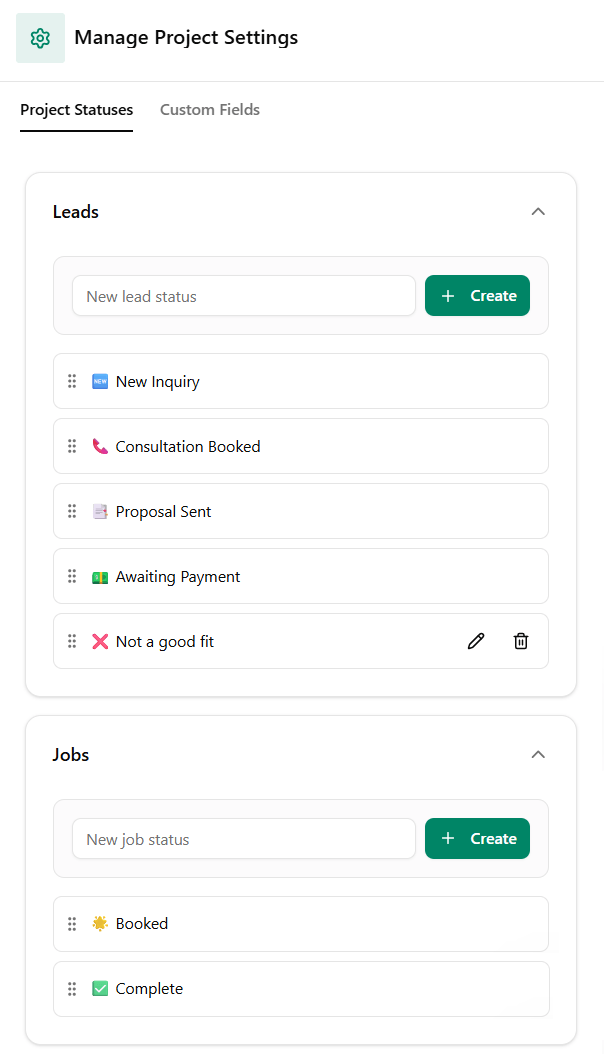
Project Status in Dubsado
Project Tags:
Tags allow you to organize projects by type service, organize clients by new or returning clients, tag projects by year and more. You can also use tags to sort your forms, flows, message templates and schedulers.
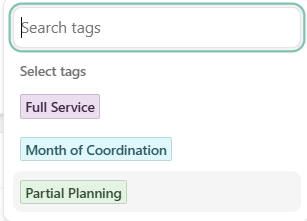
Dubsado project tags
To create your tags, you can create them inside a project. Under the project details, click Tags and type in the name of the tag you’d like to create under ‘Search or create tag’
Once assigned, you’ll see the tag title/color beside the project name

View tags on Dubsado projects
Archive projects:
Archiving projects allows you to clean up your project list. I use it mostly for leads that have let me know they will not work with me or for leads that go cold / disappear.
Archiving a project will keep all the information in it, but any workflows will stop. Any schedulers or invoices will continue to send reminders.
Note: If the project that is being archived is in any lead status - empty invoices will be deleted and any open invoices will be closed and reminders stopped.
How to organize Dubsado templates
To keep your templates organized, I do the following:
Naming emails:
This is probably the biggest organizing tip for Dubsado - it will save you loads of time, especially when building workflows.
I noticed how much this helps when I was working on a client's Dubsado setup - I spent SO much time scrolling and searching through their canned emails to find what I was looking for that I had to ice my wrist at the end of the day because of carpal tunnel issues.
This is an example of the naming convention I use with clients:
## Name of Service | ## Name of Workflow | ## | Purpose of email
Here is an example of the name of a canned email:
01 Dubsado | 01 Inquiry | 01 | Send Proposal
Let’s break it down:
## Name of Service = 01 Dubsado: I add a number so that all the emails for that service stay together - but it’s optional - then I add the name of the service so I know what the email is associated to.
## Name of Workflow = 01 Inquiry: ‘01’ because it’s the first workflow in my Dubsado setup services, and ‘Inquiry’ is the name of that specific workflow.
## = 01: it’s the first email being sent in that workflow
Purpose of email = Send Proposal: it quickly tells me exactly what that email is for without having to open it up to read the content. I know this is the email I send right after my discovery call where I send my lead the proposal for the services they are interested in.
How does this help?
It keeps my emails for the same service all together, and allows them to all appear sequentially in my canned emails list.
Below is an example of the canned emails used for a wedding planner:
You can see that all the emails inquiry emails are kept together, then the booking ones appear next - so everything appears in the order it is being sent out to the client. This is SO much easier for my brain to process vs. having emails scattered all across the different pages of my canned email tab
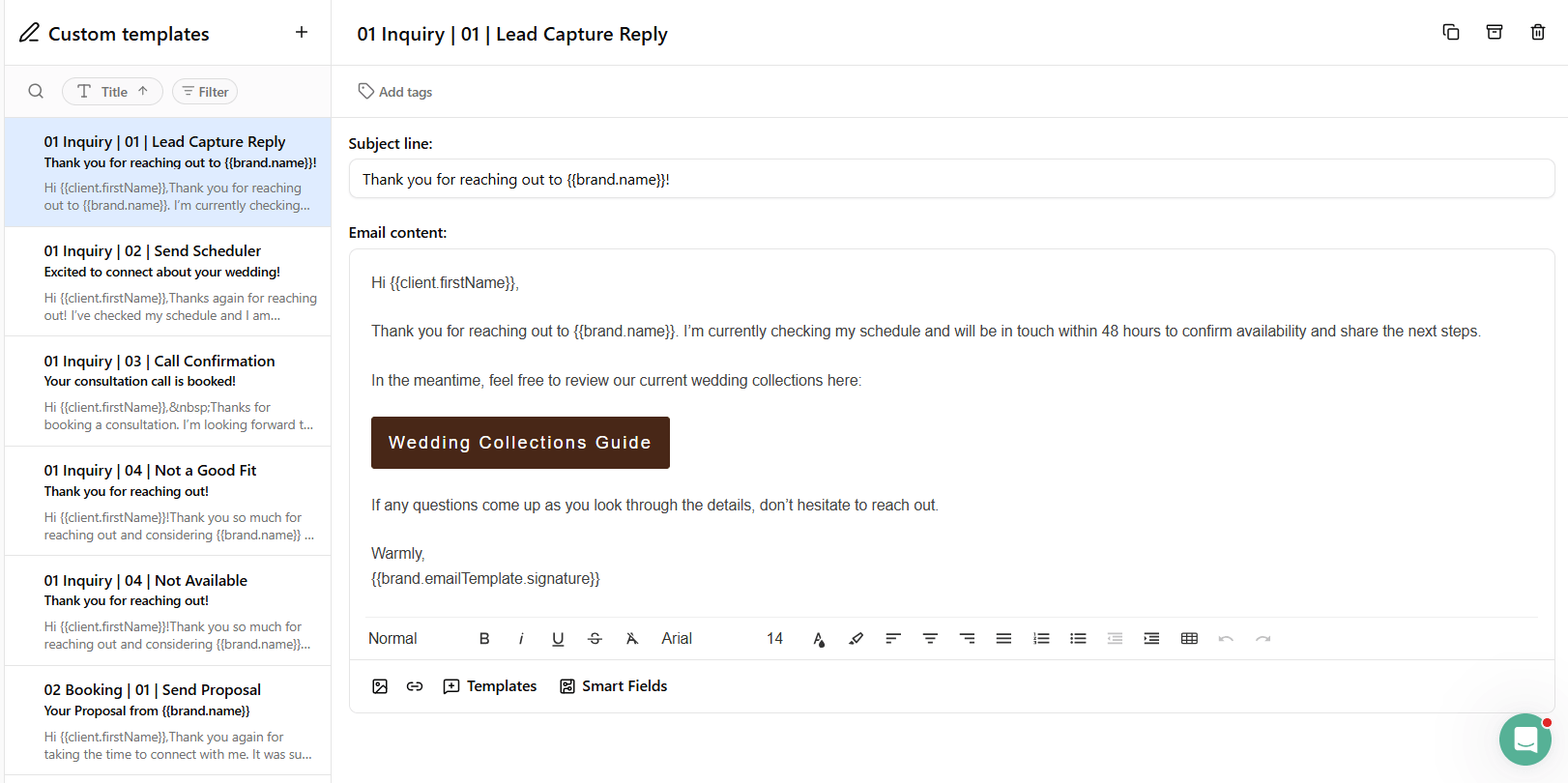
Dubsado canned email organization
Archiving templates:
If you're sure you don't need a template anymore, delete it. But if you're not ready to commit to that, Dubsado now lets you archive templates instead, so they're out of your way without losing them for good.
You can archive: forms, flows, packages, schedulers and email templates.
For forms, click the three dots beside it to expand your options, then click Archive. For other template types, you'll see the Archive icon directly. To view your archived templates later, click Filter and toggle on Archived.
This is a great middle ground if you're not sure whether you'll reuse a template for a past client type, a seasonal offer, or something you're testing, you can tuck it away without the commitment of deleting it outright.
Need help setting up Dubsado for your business?
I can help with a Done for you Dubsado setup. We’ll map out your desired client process so I can build it in Dubsado for you.
To learn more, book a free discovery call where we’ll talk about where you need help, and if it makes sense we can talk about what it’s like to work together.