
How to Force a Copy of a Google Doc (Step-by-Step Tutorial)
By Ema Katiraee, Systems Strategist
If you share templates or guides with your clients, there is a good chance you are using Google Docs. And if you are sending them the regular share link, you might be making a common mistake without even realizing it.
When you share the default link, anyone who opens it can view (or worse, edit) your original file. One accidental change from a client and your carefully built template is gone. Not great.
The fix? A simple URL tweak that forces anyone who clicks your link to save their own copy directly to their Google Drive. Your original stays untouched, every client starts fresh, and you never have to rebuild a template again.
Here is exactly how to do it.
Step 1: Open Your Original Google Doc
Start with the document you want to share. This should be your master template, the version you want to keep untouched.
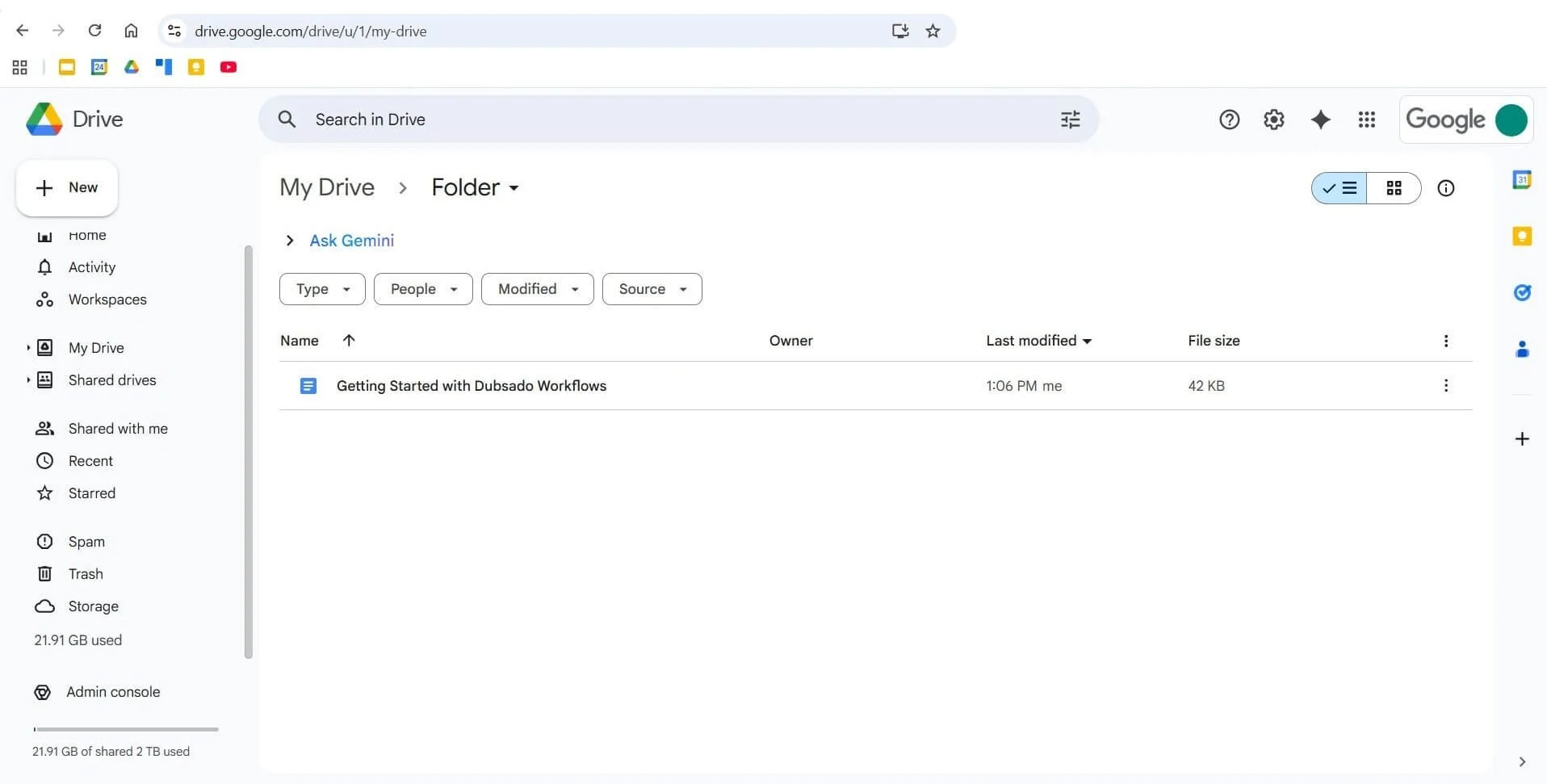
Open the Google Doc you want to share as a template
Step 2: Adjust the Sharing Settings
Click the blue Share button in the top right corner, or right-click in the menu and select Share.
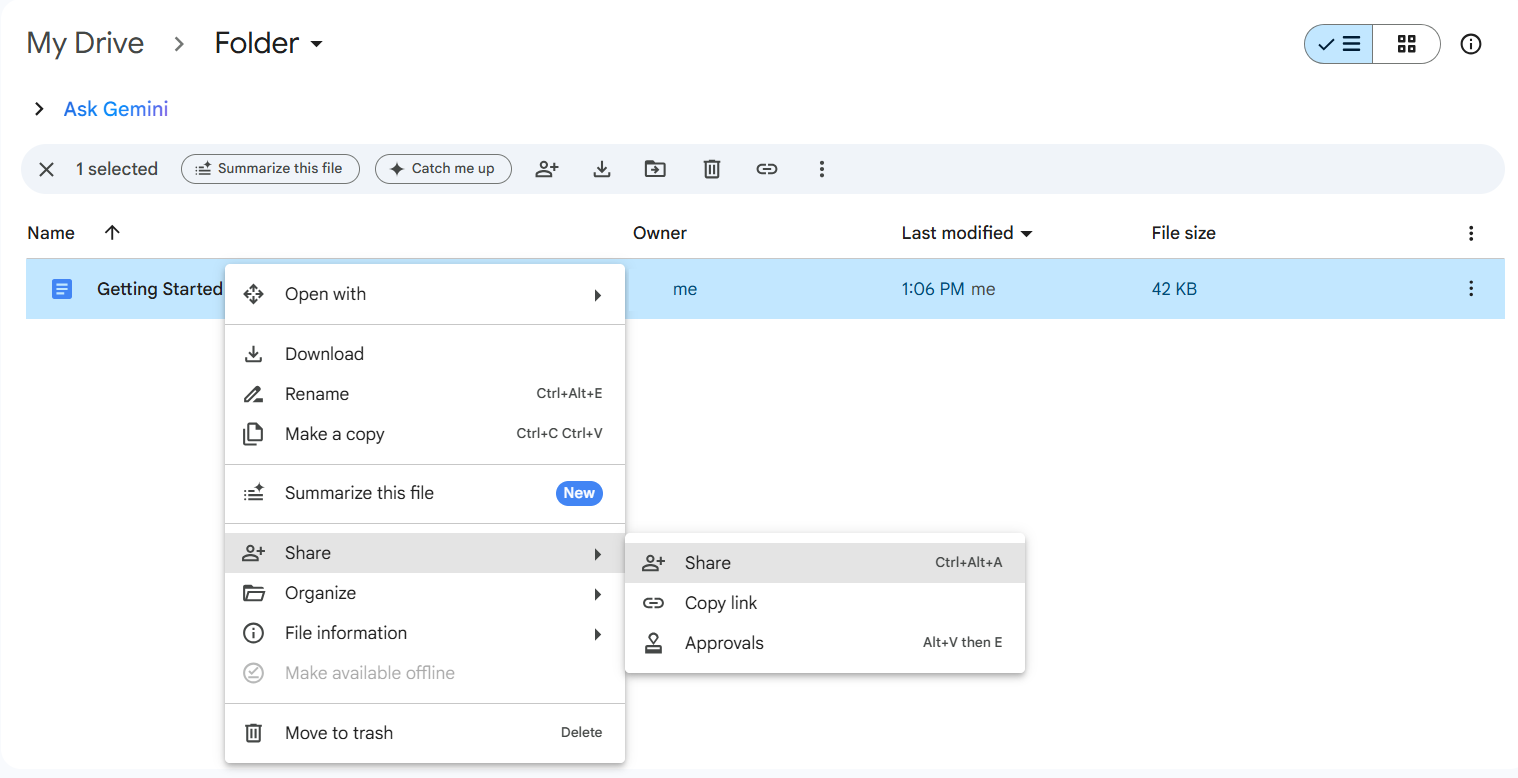
Right-click the file in Google Drive and select Share to access your sharing options
Under "General access," switch to Anyone with the link and set the permission to Viewer. This lets people see your document without being able to touch your original.
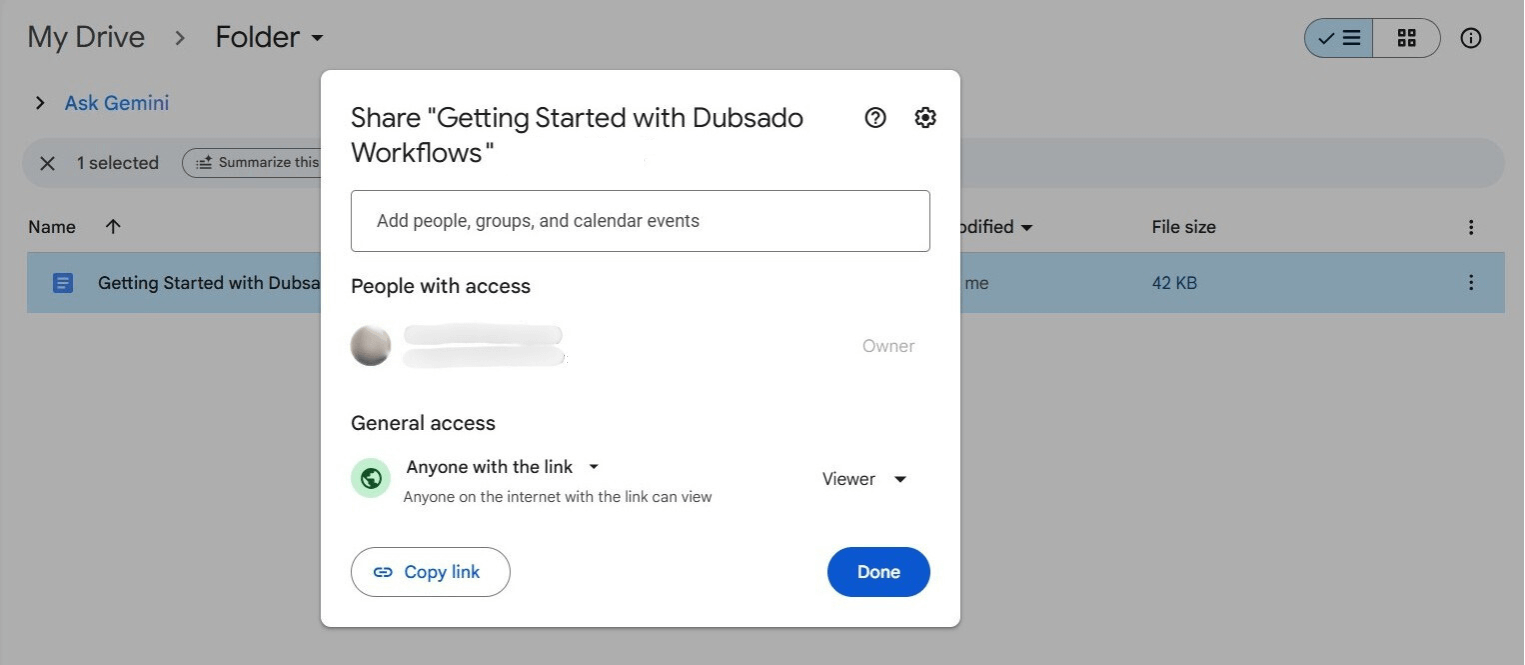
Set General access to ‘Anyone with the link’ and change the permission to Viewer
Step 3: Copy the Link
Click the blue Share button in the top right corner, then click Copy link. The link will look something like this:
https://docs.google.com/document/d/1234example5678/edit?usp=drive_link

Copy the URL from your browser - this is the link you will edit in the next step
Step 4: Edit the Link to Force a Copy
Paste the link somewhere you can edit it (an email draft or a notes app works great).
Delete everything after the document ID - the long string of letters and numbers - and replace it with /copy.
Your new link should look like this:
https://docs.google.com/document/d/1234example5678/copy
Step 5: Share the Copy Link
Now when someone clicks your link, instead of opening your file, they will see a prompt that says:
Would you like to make a copy of [document name]?
Once they click Make a copy, a fresh version saves directly to their Google Drive. Clean, simple, and nothing changes on your end.
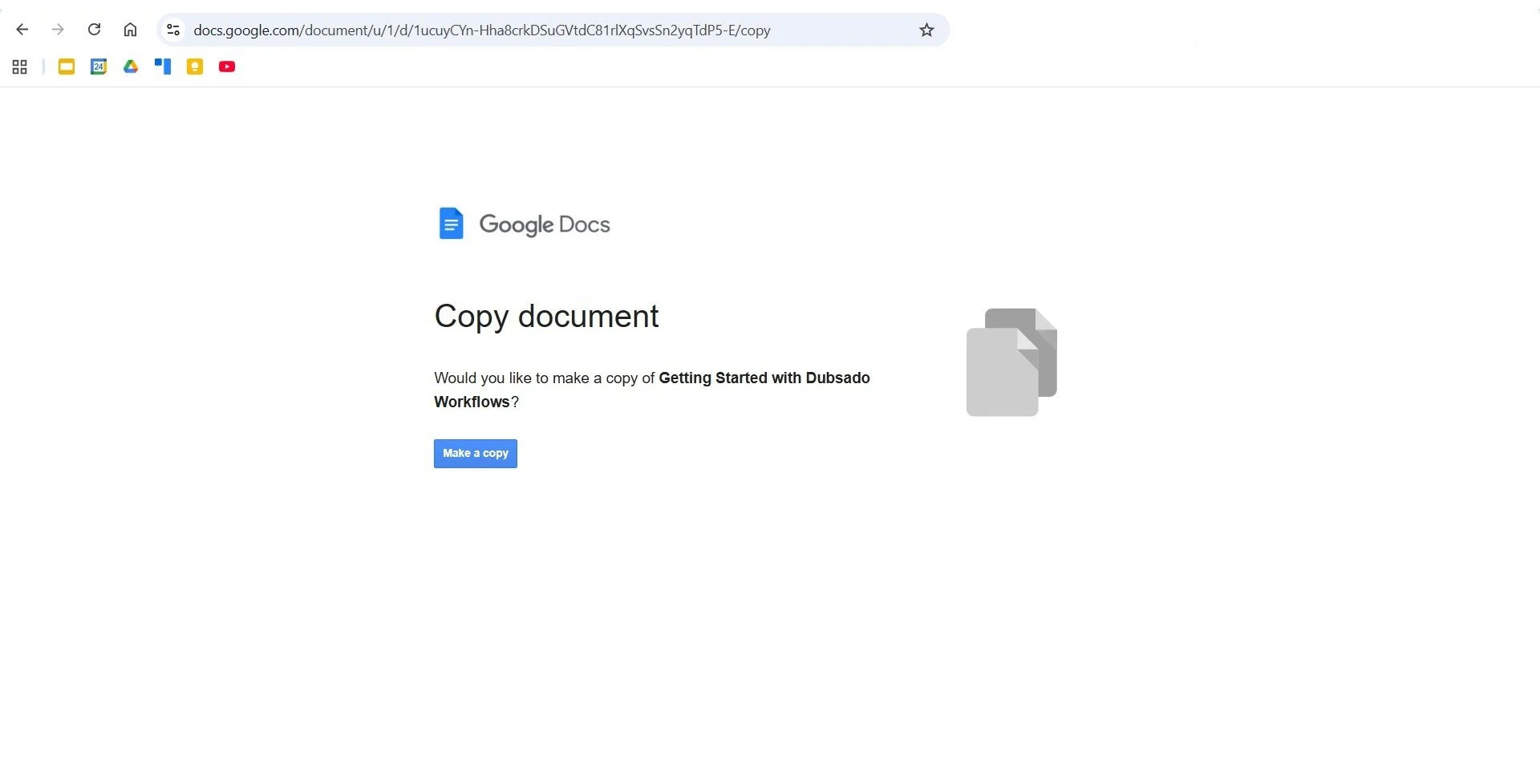
Click Make a copy - this is exactly what your clients will see when they click your link
Why This Small Tweak Matters
If you share a lot of documents with clients - welcome guides, questionnaires, shot lists, planning templates. Sending the wrong link type means your master file is exposed to accidental edits, or clients end up emailing you asking how to save their own copy.
The copy link keeps things smooth on both ends. You protect your work, and your clients get a seamless experience without needing to figure anything out.
A few other perks worth knowing:
Works across Google apps: The same trick works for Google Sheets and Google Slides, not just Docs.
Keeps things professional: Every client starts from the same clean version.
No extra steps for your client: One click and they are set.
Common Mistakes to Avoid
Do not send the /edit link. Anyone with it can modify your master file.
Do not send the /view link if you want clients to use the document. They will have to manually make a copy themselves, which adds friction.
Always test your link before sending. Paste it into a new browser window (ideally in an incognito tab) to make sure the copy prompt appears correctly.
FAQs About Forcing a Copy of a Google Doc
Can I use this trick with Google Sheets or Google Slides?
Yes! It works the same way for all Google Drive file types. Just swap out /edit for /copy at the end of the URL.
Will people be able to access my original file?
No. With the copy link, they only ever see their own version. Your master file stays private and untouched.
Do my clients need a Google account to use this?
They’ll need a Google account to save the copy to their own Drive. If they don’t have one, the link will not work for them.
Can I add my branding to the template before sharing?
Absolutely. Add your logo, website link, or contact details inside the document before you share it. Even after clients make their own copy, your branding stays visible throughout.
Your resources are organized. Is your client process?
Forcing a copy of a Google Doc is a great way to share templates with your clients. But if your client journey relies on manually sending Google links, it can get messy fast. A CRM keeps all your client communication and resources in one streamlined place. Take this 2-minute quiz to see how your entire process fits together and where you can make things easier.
Video Tutorial: How to Force a Copy of a Google Doc
If you prefer to see the steps in action, watch the walkthrough below. You will see exactly how to adjust your sharing settings, update your link, and test the copy prompt so you can share templates confidently and keep your master file safe.