
Dubsado Scheduler: How to Set It Up Step by Step
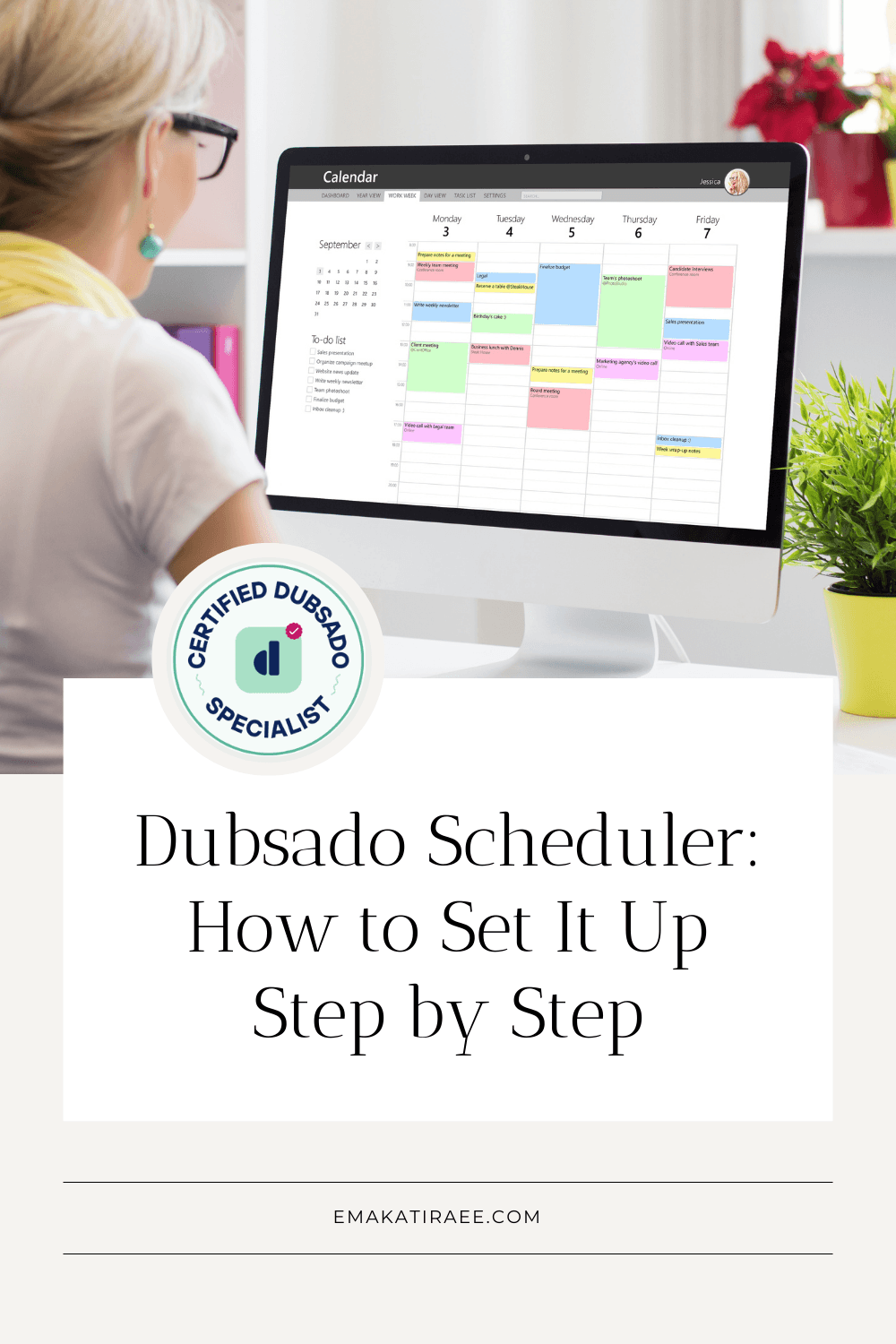
TL;DR: The Dubsado scheduler lets clients book appointments with you directly, without the back-and-forth emails. Once it's set up, you can connect it to your workflows so Dubsado automatically sends emails or forms before and after each appointment. This post walks you through both the basic and advanced settings.
If you've ever spent more time than you'd like going back and forth over meeting times, the Dubsado scheduler is worth getting set up properly.
A lot of Dubsado users stick with Calendly or Acuity out of habit, even though Dubsado has built-in scheduling that does the same job. For most service-based businesses, the Dubsado scheduler covers everything you need, and the real advantage is that it connects directly to your workflows.
That means when a client books an onboarding call, Dubsado can automatically send them a questionnaire. Or when a meeting ends, it can trigger a follow-up email without you having to think about it.
If you're still getting your Dubsado account set up, grab my free Dubsado 101 checklist first. Then come back here for the scheduler setup.
Here's a step-by-step breakdown of every setting.
Video Tutorial
Prefer to follow along visually? Watch the step-by-step walkthrough below.
Why use the Dubsado scheduler instead of a separate tool?
There are a few good reasons to stick with outside tools, like if you need recurring appointments, group scheduling, or paid booking through a platform you already use. But if those aren't requirements for you, switching to the Dubsado scheduler means one less tool and a much tighter connection between your bookings and your client workflow.
Appointment triggers in Dubsado let you automate actions at three specific points:
After appointments are scheduled
Before an appointment start time
After an appointment has ended
That kind of automation isn't available when you're using an external scheduler, because the two systems aren't connected.
How to setup the Dubsado Appointment Scheduler
Part 1 - Basic Settings
1. Appointment Name: Name this something clear, both for your own reference and because it may be visible to the person booking.
2. Appointment Duration: Choose from 15, 30, or 60 minutes, or set a custom length.
3. When can this appointment be scheduled?: You have three options:
Rolling day window: Lets people book within a set number of days from today. I usually recommend 14 or 30 days so you're not getting appointments booked months out.
Fixed date range: Sets a specific start and end date. Works well for launch periods or seasonal availability.
Indefinitely: No end date. Fine for ongoing, evergreen availability.
4. What times are you available?: Set your working hours and customize them per day of the week if needed. You can also block out specific dates.
5. Once booked, show me as: Choose whether you appear as Busy or Available after a booking. If you're syncing with an external calendar like Google Calendar, set this to Busy to prevent double-bookings.

6. Location: Enter a physical address for in-person meetings. For video calls, check the video conferencing box and connect to your videoconferencing software through your Dubsado settings. Use the appointment conferencing link smart field in your reminder emails, not the meeting location field. That's what actually pulls in the meeting link.
7. Email: This is the canned email Dubsado sends when you share the scheduler link directly. If you embed your scheduler on your website, you won't use this much.
Part 2 - Advanced Settings
1. Prevention (minimum booking notice): Sets how many hours in advance someone can book. Prevents last-minute bookings and reduces the chance of you missing an appointment.
2. Buffer Time: Adds time before and after each appointment. Gives you a few minutes to prepare before a call and handle follow-up tasks after. It also stops appointments from being booked back to back.
3. Increments: Controls how your available times are displayed. Set to 30 minutes and clients see 9:00, 9:30, 10:00. Set to 60 minutes and they see 9:00, 10:00, and so on.
4. Appointment details: Set the maximum number of appointments per day. You can also set a total cap, after which the scheduler closes entirely. That last option is useful for promotions or limited-availability offers.
5. Welcoming message: Appears at the top of the scheduler when someone opens the link. Not visible for embedded schedulers.

6. Confirmation email: The email Dubsado sends automatically after someone books. Choose from your canned email library.
7. Additional form: Attach a questionnaire or lead capture form that must be filled out before the booking is confirmed. If you're using the scheduler for new leads, attaching a lead capture form here will automatically create a new client and project in Dubsado.
8. Redirect URL: The page they land on after booking is complete. If you have a thank-you page on your website, add the link here.
9. Invoice: Require payment before the booking is confirmed. The invoice must be paid in full since payment plans aren't available through the scheduler.
10. Notification: Set up automated reminders before the appointment. This one matters. I recommend a reminder 24 hours in advance and another one an hour or 30 minutes before. People forget appointments, and these cut down on no-shows significantly.
11. Monthly view: Toggles between a monthly calendar view and a weekly view. I keep this on because the monthly view is much easier to navigate.
Frequently asked questions about the Dubsado scheduler
Can I use the Dubsado scheduler instead of Calendly?
For most service-based businesses, yes. The Dubsado scheduler handles individual appointments, custom availability, buffer time, and reminders. The main reasons to stick with Calendly are if you need recurring appointments, group scheduling, or round-robin booking for a team. If you don't need those features, the Dubsado scheduler does the job and connects directly to your workflows.
How do I connect the Dubsado scheduler to Zoom or Google Meet?
Go to your Dubsado settings and integrate Zoom or Google Meet under the integrations section. Once connected, check the video conferencing box in your scheduler's basic settings. Then use the appointment conferencing link smart field in your reminder emails so the correct meeting link is included automatically.
Can the Dubsado scheduler automatically send emails after a booking?
Yes. In the advanced settings, you can attach a confirmation email that sends automatically as soon as someone books. You can also go further by adding appointment triggers to your Dubsado workflows, which can fire after someone books, before the appointment starts, or after it ends.
What's the difference between the confirmation email and the notification settings?
The confirmation email is sent to the client immediately after they book. Notifications are reminders sent closer to the appointment time. Both are configured separately in the advanced settings.
Can I charge for appointments through the Dubsado scheduler?
Yes. In the advanced settings, attach an invoice and require full payment before the booking is confirmed. Payment plans aren't available through this feature.
Does the Dubsado scheduler work for new leads?
Yes. Attach a lead capture form in the additional form setting and Dubsado will automatically create a new client and project when someone books for the first time. This is how most people set up their discovery call scheduler.
Need help with Dubsado?
Getting the scheduler configured is one piece of the puzzle. If you want everything connected properly, including your workflows, forms, and automations, I can help with a done-for-you Dubsado setup. Book a free discovery call to talk through what you need.