
How to Create Email Templates in Gmail
By Ema Katiraee, Systems Strategist
When you think of email templates, your email marketing software or CRM might be the first place that comes to mind.
But sometimes you need a Gmail Template instead. For quick updates, reminders, or standard replies, it is easier to save the message inside Gmail so you can reuse it anytime without retyping.
The good news is that Gmail makes this simple. Here is how to create and use a Gmail template.
Step 1: Make Sure Templates Are Enabled
Before you can use Gmail Templates, you need to turn them on in your settings.
Click the gear icon in the top right corner of Gmail.
Select See all settings.
Go to the Advanced tab.
Find Templates and select Enable.
Scroll down and click Save Changes.
Once this is enabled, you can start creating and using templates.

Enable templates in your Gmail account
Step 2: Write Your Email
Open Gmail and click Compose to start a new message. Write the email exactly how you want it saved. Add formatting, links, and text. If you already have a signature that appears on all outgoing emails, do not add it here again.
Step 3: Open the More Options Menu
At the bottom right corner of your draft, you will see three vertical dots. Click them to open the More options menu.
Step 4: Choose “Templates”
From the menu, hover over Templates. A new side menu will appear with the options to insert or save templates.
Step 5: Save Your Draft as a Template
Click Save draft as template → Save as new template.
Give your Gmail Template a clear name so you can find it easily later.
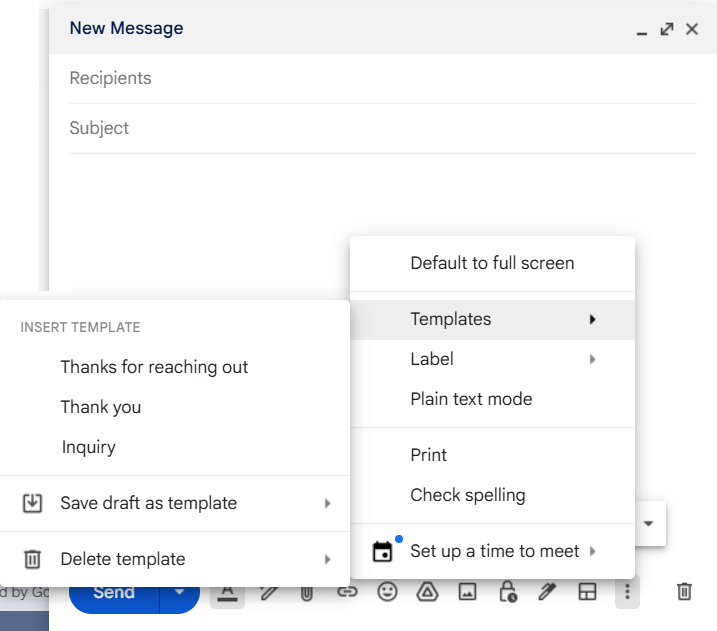
Save email as a template in Gmail
How to Use a Gmail Template
The next time you want to send that message:
Compose a new email.
Click the three vertical dots.
Hover over Templates.
Select your saved template.
Your text will appear in the email body. From there, you can make changes or add personal details before sending.
Send a Gmail Template as an Automatic Reply
You can also set Gmail to send a saved template automatically when certain emails arrive. This works well for standard responses to common questions.
Here is how:
Click the gear icon and go to See all settings.
Select the Filters and Blocked Addresses tab.
Click Create a new filter.
Enter the conditions for when you want the auto reply sent, such as emails from a specific address.
Click Create filter.
Check the box for Send template and pick the template you want.
Click Create filter again to finish.
Now Gmail will send that reply automatically whenever your filter conditions are met.
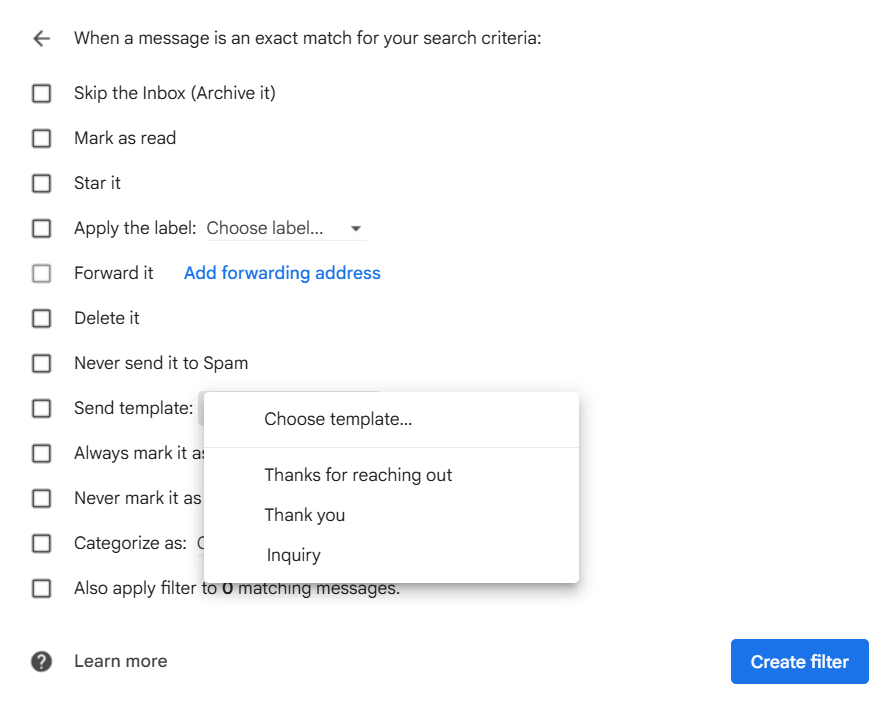
Set your email template as an automatic reply in Gmail for a specific filter
Why Use Gmail Templates?
Save time: Stop typing the same email over and over.
Stay consistent: Keep your replies polished and professional.
Keep it simple: Templates live right inside Gmail so you do not need to log into another tool.
Automate replies: Use filters to send your Gmail Template automatically.
If you send the same type of email more than once, creating a Gmail Template will save you time and keep your communication smooth. It is an easy feature that makes a big difference in your day-to-day workflow.
FAQ About Gmail Templates
1. How many Gmail Templates can I save?
You can save up to 50 Gmail Templates in your account.
2. Can I edit a Gmail Template after saving it?
Yes. To update a template, open a draft with your changes, click the three dots, go to Templates, then Save draft as template, and choose to overwrite the old version.
3. Can I share my Gmail Templates with others?
Not directly. Gmail Templates are tied to your account. If you want to share one, copy the text into an email or document and send it to someone so they can save it as their own template.
Templates save time, but you're still doing the heavy lifting...
Gmail templates are a life-saver for shaving off time writing emails. But if you’re still manually customizing, and sending templates for every single inquiry, contract, and invoice, your business is outgrowing your inbox. Take this 2-minute quiz to see how your client experience scores and find out what to automate next.
Video Tutorial: Gmail Templates
If you prefer to learn by watching, here is a quick walkthrough that shows each step in action. You will see exactly where to enable templates, how to save your draft, and how to insert it into a new email so you can use your templates anytime with confidence.