
Dubsado Gmail Integration: How to Connect Your Email (and Fix SPF Issues)
By Ema Katiraee, Certified Dubsado Specialist
TL;DR: Setting up the Dubsado Gmail integration itself only takes a minute, go to Settings > Emails, click Sign in with Google, select your account, and you're technically connected. But if you use a custom domain email (like name@yourdomain.com) through Google Workspace, that connection isn't the last step. The real thing standing between you and your emails landing in your client's inbox instead of their spam folder is your SPF record. Below is the quick connection steps, then the SPF setup and troubleshooting that actually solves most people's problem.
Here's the thing about the Dubsado Gmail integration: it's rarely the integration itself that's broken. I've set up more Dubsado accounts than I can count at this point, and clicking Sign in with Google and picking an account is never where anyone gets stuck. What actually happens is someone connects their email, sends a proposal, and their client tells them a week later it landed in spam or never showed up at all. They assume the Gmail connection failed. Almost every time, it didn't. What's missing is an SPF record.
If you use a @gmail.com address, none of this applies to you, Google handles it automatically. But most of the business owners I work with send from their own domain (name@yourdomain.com), and for that setup, connecting Gmail is only part of the job.
Step 1: Connect Gmail to Dubsado
Before you do anything else, check that your Dubsado login email is verified. You can't send anything through the platform until it is.
In Dubsado, go to Settings → Emails
Click the Sign in with Google button (if you use Outlook or Microsoft 365 instead, click the Sign in with Microsoft option)
Select the Google email address / account you want to connect
Follow the prompts to finish the integration
This works for both @gmail.com addresses and custom domain emails from Google Workspace (formerly G Suite). Note: you can only connect a primary email address, not an alias, since Dubsado needs an account with its own password to authenticate.
Once that's done, Dubsado will show your account as connected. That's real progress, but it's not the same as Gmail, Yahoo, and everyone else your clients use actually trusting mail sent through it. That trust is what SPF handles, and it happens entirely outside Dubsado.
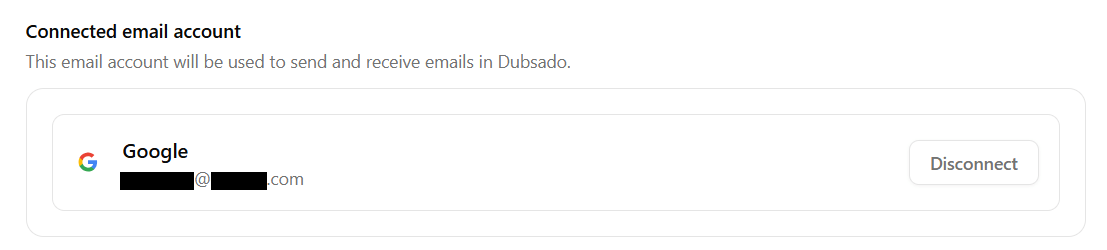
Once connected, Dubsado shows your Gmail account under Settings → Emails.
Step 2: Set up SPF and DKIM
If your email shows as connected and you're still seeing bounces, spam folder complaints, or messages that just vanish, this is almost always the reason. SPF and DKIM tell providers like Google and Yahoo that mail sent through Dubsado is legitimate and really coming from you. But if you skip this step, a perfectly written proposal has a real chance of never being seen.
Whether you need to touch this depends on your setup.
If you use a @gmail.com address: your SPF and DKIM setup are handled automatically through Google, no action needed.
If you use a custom domain email address through Google Workspace (something like name@yourdomain.com), you'll need to set up both yourself, and this is the step I see skipped more than any other, mostly because it happens in your domain host's settings rather than inside Dubsado where you'd expect it.
Setting up your SPF record
Your SPF value comes from your email host (Google), not from Dubsado. It gets added as a TXT record wherever your domain lives, GoDaddy, Squarespace, Namecheap, or otherwise.
For Google Workspace, the value is: v=spf1 include:_spf.google.com ~all
Follow these steps (regardless of domain host) to set up your SPF record:
Log into your domain host → go to the DNS settings
Add a new record → add a TXT record
Set the host or name field to @
Paste in your SPF value of v=spf1 include:_spf.google.com ~all
Save

Your SPF record gets added as a TXT record in your domain host's DNS settings, not inside Dubsado.
Go to your Dubsado Settings → Emails → Email Deliverability and click Verify
When it's working, you'll see “Success! Your SPF record is verified”
Note: a domain can only have one SPF record. If you already have one from another email tool, you'll need to merge the values rather than add a second one, or neither will verify.
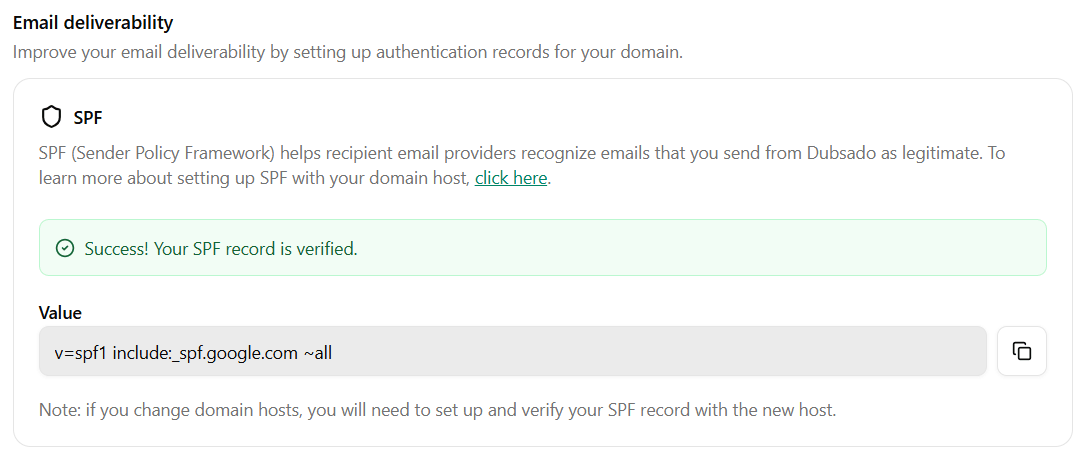
Once your SPF record propagates, you'll see this confirmation message
Setting up DKIM
SPF and DKIM solve different problems. SPF says which servers are allowed to send mail for your domain. DKIM attaches a digital signature to each email so the receiving server can confirm it actually came from you and wasn't tampered with. Google and Yahoo increasingly expect both, so having only one set up can still leave your mail looking less trustworthy.
This one happens entirely in your Google Workspace admin console, not Dubsado:
Go to admin.google.com and sign in with an administrator account
Go to Admin → Apps → Google Workspace → Gmail → Authenticate email
Under Selected domain, choose the domain you’re using from the dropdown menu
Click GENERATE NEW RECORD (choose 2048-bit)
Copy the DKIM TXT record value Google gives you, that looks like v=DKIM1; k=rsa; p=(really long string here)
Head back to your domain host's DNS settings
Add a new record → add a TXT record
Set the host or name field to google._domainkey
Paste in your DKIM value
Save
Go back to the Google Admin console and click START AUTHENTICATION
DKIM can also take up to 48 hours to fully take effect. So if you run into any issues right away, give it some time before troubleshooting.
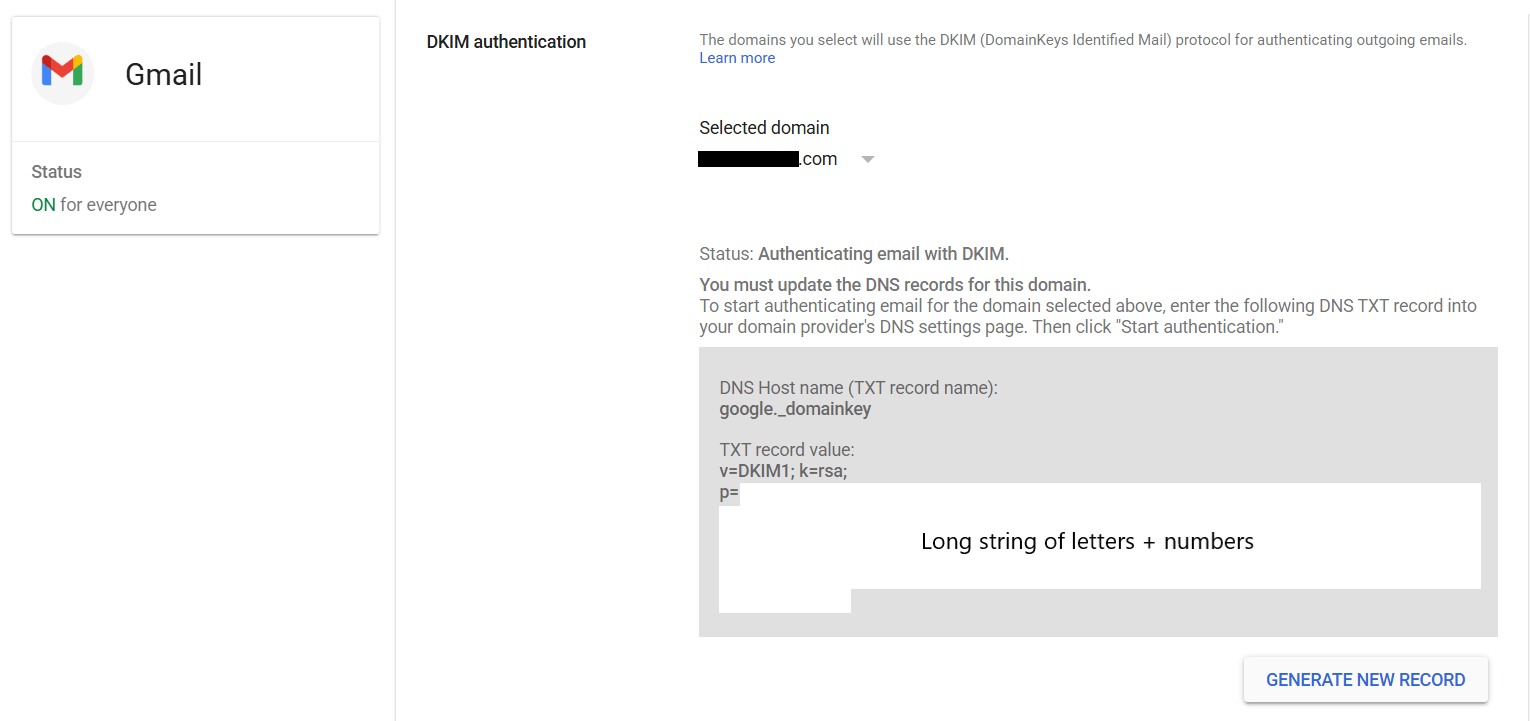
DKIM setup happens entirely in your Google Workspace admin console
Step 3: Testing before you send it to a real client
Once everything's connected (and verified, if SPF applied to you), test it out first. Create a test project using your own email address, and send yourself a test email. Check your regular inbox, outside of Dubsado, to confirm it landed and didn't go to spam.
Once you've confirmed everything's landing where it should, it's worth building out your canned email templates too, so the messages you send through Dubsado are ready to go instead of retyped every time.
SPF Errors people run into
This is usually where the real troubleshooting happens. If you've clicked Sign in with Google and things still aren't working, check Settings → Emails → Email Deliverability for one of these.
"Your SPF record could not be verified" means Dubsado can't find any SPF record on your domain yet. Add one following the steps above, and if you just did, give it time, DNS changes can take up to 48 hours to fully propagate before Verify will show a change.
"No valid TXT record found for one of the domains listed in your SPF record" usually means one of three things: the SPF value is outdated, you accidentally added it as another type of record instead of TXT (maybe it was added as an MX, CNAME or A type ), or it just hasn't propagated yet.
"We found multiple SPF records on your domain" means exactly that, a domain can only have one. If you spot more than one v=spf1 line in your DNS settings, they need to be merged into a single record.
"We found an error" with a specific message attached is almost always a typo. A valid record starts with v=spf1 and ends with ~all or -all, and you should only ever have one of each.
Past that, it's worth going straight to your domain host or email host. They can see the actual record on their end in a way Dubsado can't.
Prefer to watch it in action?
If you'd rather see the whole process on screen, this video by Stewart Gauld covers How To Set Up Google Workspace SPF, DKIM & DMARC | Improve Email Deliverability. It's a genuinely good resource I point clients to.
Frequently Asked Questions
Can I connect an alias email instead of my main address? No. Dubsado can only connect a primary email address, because it needs an account with a password attached to authenticate the connection. An alias doesn't have its own password, so it won't work.
Why am I not seeing my client's email replies inside Dubsado? A few things to check: make sure your client's email address is saved under Contacts. Also check your Dubsado inbox directly, since replies to emails your client initiated (rather than ones you sent first) land there instead of inside the project. And confirm the original email was sent from within Dubsado, not from your regular inbox.
Do I need to set up SPF if I use a regular Gmail address? No. If your email ends in @gmail.com, Google handles SPF and DKIM automatically. This only applies to custom domain emails run through Google Workspace.
How long does it take for an SPF record to work after I add it? DNS changes can take anywhere from a few minutes up to 48 hours to fully propagate. If Dubsado still shows an error right after you've added the record, wait a bit and click Verify again before troubleshooting further.
Can I have more than one SPF record for my domain? No, a domain can only have one SPF record. If you need to authorize more than one email service to send on your behalf, those values need to be merged into a single record instead of added separately.
Want Dubsado handled for you?
Building email templates, workflows, forms, and the rest of your Dubsado account so it runs the way it should, takes time most business owners don't have. That's exactly what a done-for-you Dubsado setup is for, I take care of the whole thing so you don't have to. If you'd rather talk it through first, book a discovery call and we'll figure out what your account needs.