

By Ema Katiraee, Certified Dubsado Specialist
Dubsado allows you to connect external calendars so your availability can take into consideration all the events you have in your Google (or other) calendar - not just events in Dubsado.
In this blog post, I’ll go over how to connect an external calendar to Dubsado and go through the different calendar events that Dubsado creates based on scheduler appointments and projects.
Looking to replace Calendly with Dubsado's own scheduler, or connect the two? See how the Dubsado scheduler works or connect them using Zapier.
Dubsado calendar event colors
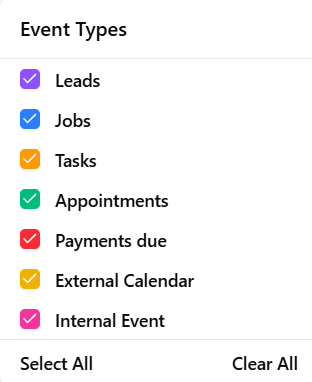
Dubsado uses color coding to help you quickly distinguish what each event type is in the calendar:
Purple are project dates for projects with a lead status.
Blue are project dates for projects with a job status.
Orange are tasks. These aren’t to-dos that are created via a workflow, but project tasks that you assigned a due date to.
Green are appointments that are booked via a scheduler.
Red are invoice payment due dates.
Yellow are events synced from an external calendar.
Pink are events from the internal calendar that you add manually.
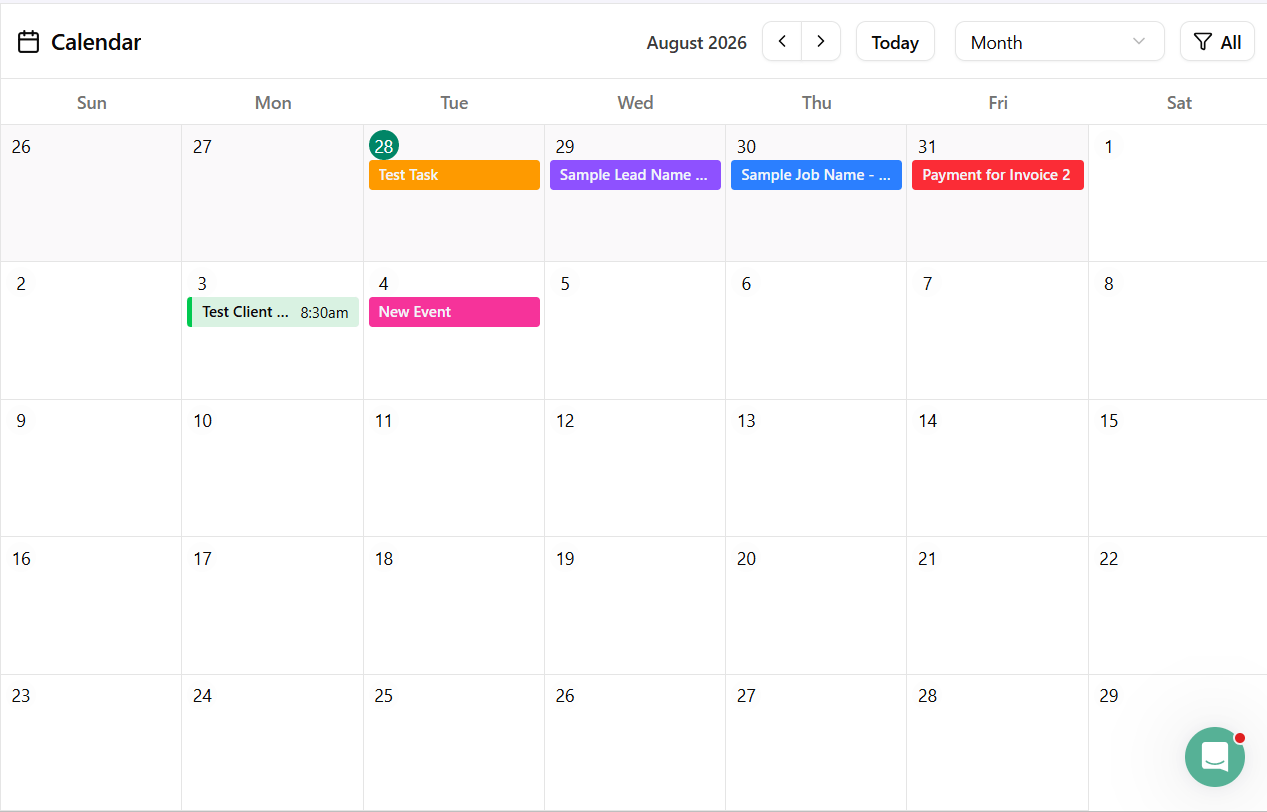
If you click on the Dubsado generated events / appointments in your calendar you can see the details of the event and even make changes. This isn’t the case for events that are synced from an external calendar.
Scheduler appointments
If you click on the appointment in the calendar, a pop up will appear with the following details:
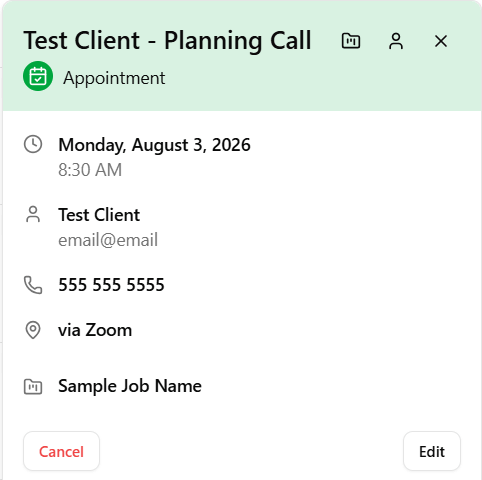
Keep in mind that any edits you make will notify your lead or client of the changes and send them an email notifying them of the rescheduling of their appointment.
From the appointment you can:
Edit: use this option to make changes to the appointment. Once you’re done making changes, click Update and it will notify the client of any changes made.
Cancel: this will send your client an email letting them know that you have cancelled the appointment, you can add a cancellation reason before the email goes out.
Go to the project: this will open up the project that this scheduler appointment is tied to.
Go to the contact: this will open up the information for the client inside your contacts (formerly the address book).
Invoice due dates
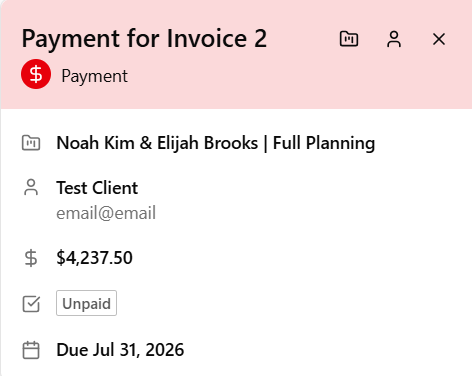
If you click on the invoice due date in the calendar, it will display a pop-up with details of the invoice, client and project. From the invoice payment details you can go to the project or contact.
Project dates
If you click on the project date in the calendar, a pop up will appear with the following details:
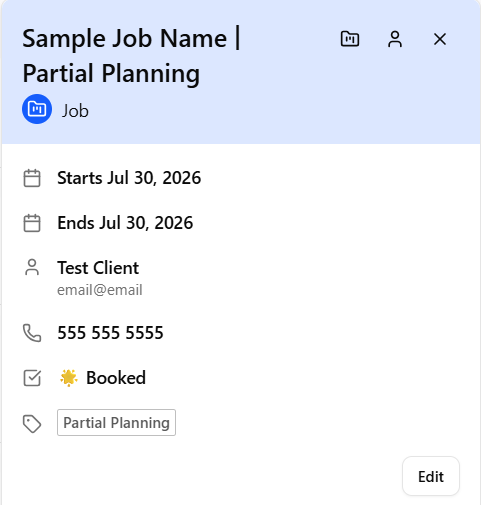
Click Edit to update the project start and end dates. You can also change it from an all date event to setting a specific start and end time. You can also decide if you want to appear as available or busy.
Keep in mind that if any actions in your workflow or payment plan are tied to a project start date or end date, making changes to the project dates here will impact those dates in the workflow or payment plan.
Tasks
If you click on the task due date in the calendar, a pop up will appear with the following details:
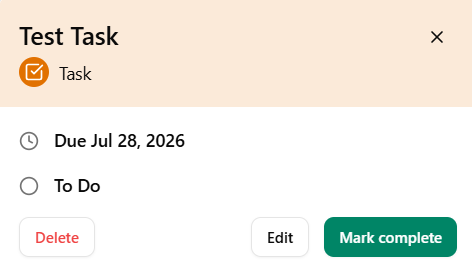
Click Edit to update the name of the task, change the due date - changing it from an all day due date to a specific time of the day. You can also assign the task to a specific assignee, mark it as complete, add it to a job, or mark it as private. Marking a task as private means that it will only be visible to you and cannot be assigned to someone else
Changing the due date here will change it in the calendar view.
Connect an external calendar to Dubsado
To view your external calendar in Dubsado, have your Dubsado appointment show up in your external calendar and take into account your availability using events outside of Dubsado - you need to integrate or connect your external calendar.
Dubsado connects to the following list of external calendars:
Apple Calendar
Google
Office 365
Microsoft Exchange
Outlook
Only one calendar can be connected per account and for multi-user accounts, scheduling will be set based on the brand owners calendar.
To connect your external calendar, go to Events → Settings and under Calendar Sync, click Connect Account
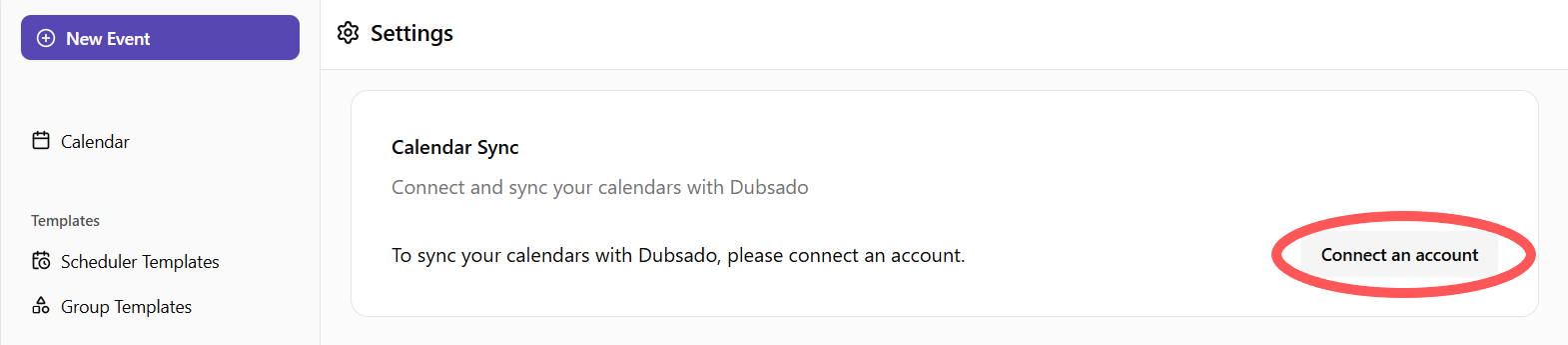
Next you’ll be taken to a different page to select the type of calendar you want to connect using a third party app called Cronofy.
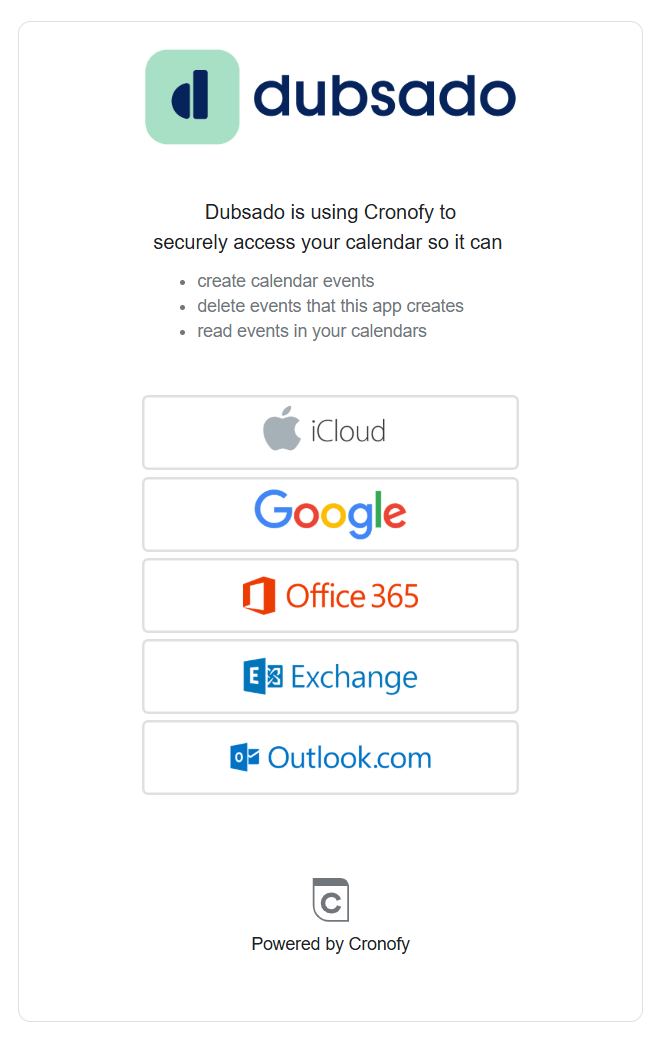
Select your calendar provider from the list to connect to Dubsado
Once connected, your calendar will appear in the settings.
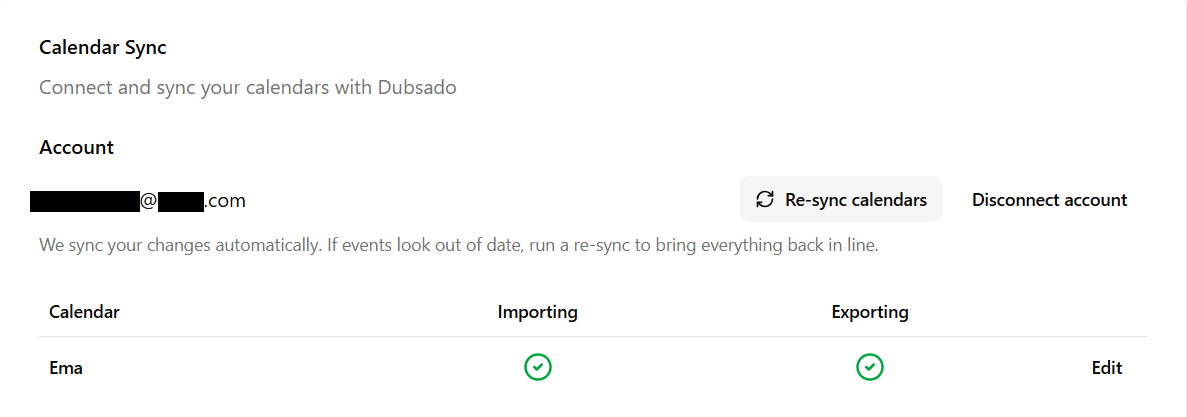
Click Edit to update the sync settings of the calendar to:
Import your external calendar events into Dubsado
AND / OR
Export Dubsado’s calendar into your external calendar
Important: If you want to make sure that you don’t get double booked, make sure BOTH options are checked.
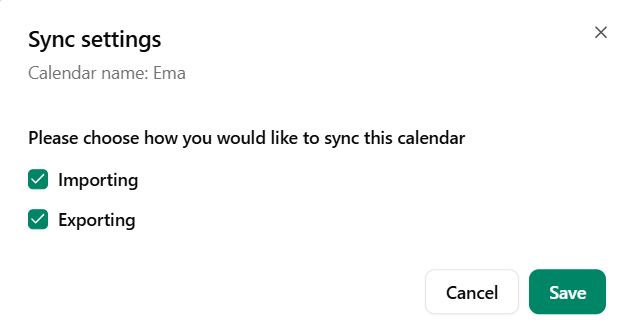
Note: if you have multiple calendars inside the connected account - those will all show up inside Dubsado. You can decide the settings for each calendar individually.
For external calendars, your availability (free or busy) needs to be set inside the external calendar itself. So if you set an event as busy, Dubsado will take that into consideration and remove that time frame from your availability when someone is booking an appointment with you.
Calendar event view
If your Dubsado calendar view gets a bit busy and you just want to see a certain type of event, you can click the filter button to select which types of events you’d like to see in your calendar:
Setting your scheduler availability
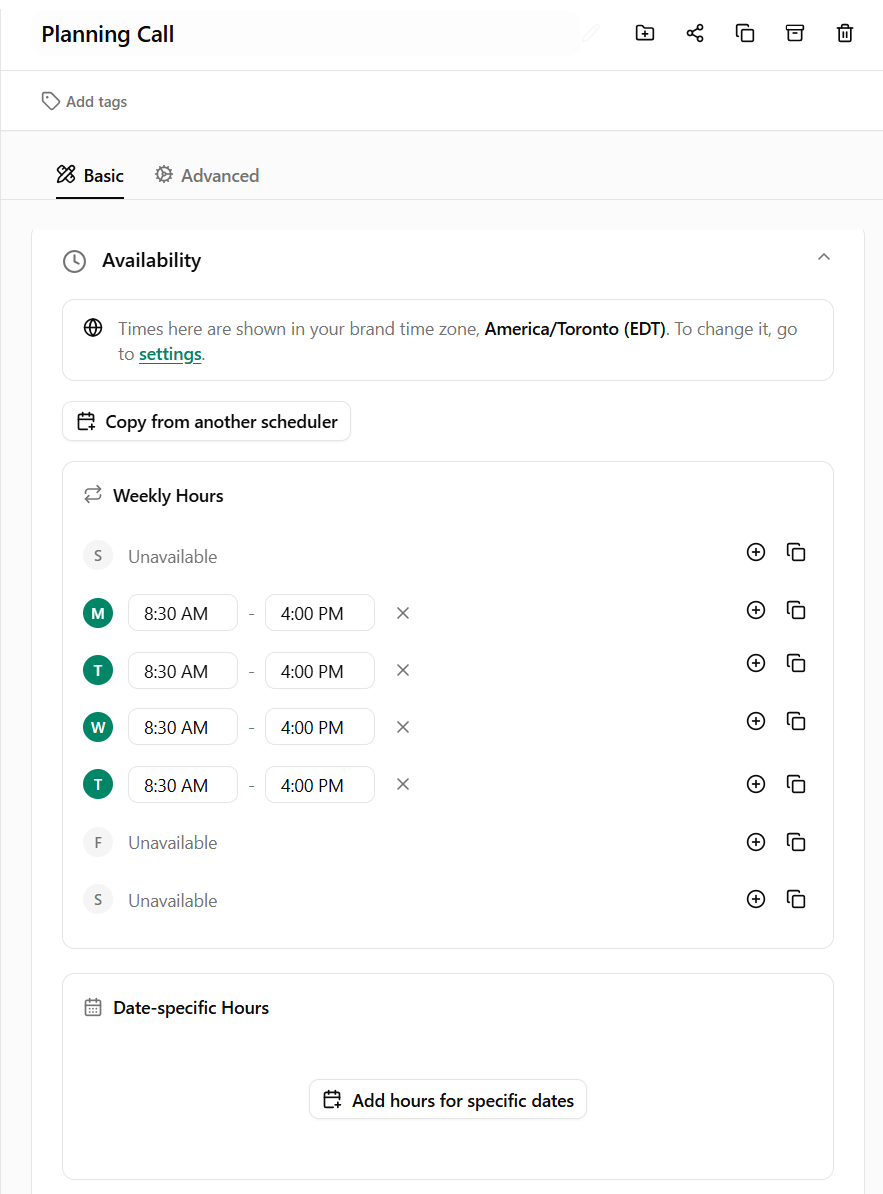
It’s important to set the availability of each scheduler in Dubsado to make sure people can only book that appointment during the time slots that you choose.
To set your hours, go to the scheduler you want to edit and scroll to the Availability section and click to add your weekly hours for each day of the week. You can also copy the availability from another scheduler.
For the full scheduler setup, including availability, booking windows, and reminders, see the complete scheduler setup guide.
Tutorial: Using the calendar in Dubsado
A quick tutorial to take you through everything in this blog post: the different event types in Dubsado, how to integrate an external calendar and more.
Need help setting up Dubsado for your business?
I can help you with a Done-For-You Dubsado setup. We’ll map out your desired client process so I can build it in Dubsado for you.
To learn more, book a free discovery call where we’ll talk about where you need help, and if it makes sense we can talk about what it’s like to work together.