

By Ema Katiraee, Certified Dubsado Specialist
TL;DR: Switching from HoneyBook to Dubsado happens in two stages. First, build your Dubsado account: settings, integrations, email templates, forms, packages and flows. Then move your clients. Your contact list transfers with a CSV export and import. Completed files come over as PDFs, and invoices are recreated by hand. Clients who are part way through are the hardest part, so the simplest option is to let them finish in HoneyBook and only move new clients into Dubsado.
Disclosure: This post contains affiliate links, which means I may earn a commission if you click through and make a purchase. This comes at no additional cost to you.
If you’re thinking about switching from HoneyBook to Dubsado, the most common question I hear is “what actually comes with me?” The short answer: your contact list moves over easily, and almost everything else gets rebuilt or added by hand.
That sounds like a lot, but it’s manageable when you do it in the right order. As a Certified Dubsado Specialist, I’ve set up Dubsado for clients coming from HoneyBook, and this is the order I recommend.
Watch: How to Switch from HoneyBook to Dubsado
If you’d rather watch than read, this video walks through the full switch, from setting up your Dubsado account to moving your clients over. Dubsado updates its look often, so your screens may be a little different from mine, but the steps are the same.
Is Dubsado the right fit before you switch?
Make the decision before you move anything. HoneyBook works well for a lot of businesses, and switching takes real time.
People usually move to Dubsado because they want more control over their automations, and more freedom and design options in how their forms look. If you’re still deciding, start with my Dubsado vs HoneyBook comparison and my Dubsado review. They cover the trade-offs, including where Dubsado takes more work to set up.
What transfers from HoneyBook, and what do you rebuild?
Here’s the overview before we get into the steps:
Moves with an export and import: your contact list
Rebuilt in Dubsado: email templates, forms (questionnaires, contracts, proposals), packages, payment plans and flows
Added by hand, if you want them in Dubsado: completed questionnaires and signed contracts (as PDFs), and invoices (recreated and marked as paid)
There’s no button that moves everything at once. The good news is that you decide how much history to bring over.
What order should you switch in?
Set up your Dubsado account and integrations
Rebuild your templates and flows
Test everything
Move your contact list
Add past clients’ files (optional)
Decide what to do with clients who are part way through
Building first means that when a client lands in Dubsado, everything they need is ready.
Step 1: How do you set up your Dubsado account?
Start with a Dubsado account. If you don’t have one yet, you can use my code EMAKATIRAEE for 30% off your first year or month with Dubsado.
Then work through the foundation. My Dubsado 101 Checklist walks you through each piece with short videos:
Account settings: business name, logo, brand colors, time zone and currency
Your custom Dubsado URL so links show your own domain
Client portal: colors and banners
Project sources, statuses and tags
Integrations: Connect your email, your calendar, your payment processor (Dubsado Payments, PayPal or Square) and anything else you use, like Zoom, QuickBooks, Xero or Zapier
Don’t skip the integrations. Your emails, scheduler and payments depend on them.
Step 2: How do you move your HoneyBook templates into Dubsado?
Email templates. Open each email template in HoneyBook, copy the text and paste it into a new canned email in Dubsado. Swap HoneyBook’s personalization fields for Dubsado smart fields as you go.
Forms. Save your HoneyBook files as PDFs: open each one as a preview, click the three dots and then Save page as PDF. Then use Dubsado’s Easy Form Creation tool to turn each PDF into a form template:
Go to Forms, then Form Templates, then New Form Template
Upload the PDF. The limit is 10 MB, so if your file is bigger, run it through a free PDF compressor first
Review the draft it creates, then adjust it in the Chat tab or the form builder
Add your branding, smart fields and packages
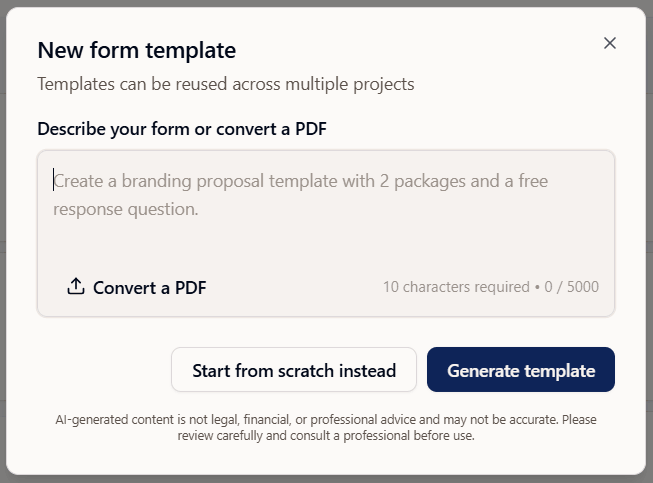
Upload a PDF of your HoneyBook form and Dubsado builds a draft template for you to review
It won’t copy your design exactly, and long or complicated forms can come out incomplete, so check every one. It still saves a lot of retyping. You can also build forms from scratch in the form builder if you prefer.
Packages and payment plans. Create a package for each service and add-on, and a payment plan for each way you collect payment.
Flows. HoneyBook automations and Dubsado flows don’t work the same way, so don’t try to copy them step for step. Write down what happens in your client process from inquiry to wrap-up, then build a flow for each service. My guide to creating workflows in Dubsado walks through it.
Test everything. Submit your own lead capture form, book your scheduler, sign your contract and pay a test invoice before a real client sees any of it.
Step 3: How do you move your contact list from HoneyBook to Dubsado?
This is the easy part.
In HoneyBook:
Tag your active clients first, so you can download them as a separate list
Go to Clients, then Contacts, and filter by that tag
Click the three dots and choose Download spreadsheet
You’ll get a CSV file with names, emails, phone numbers, addresses and notes.
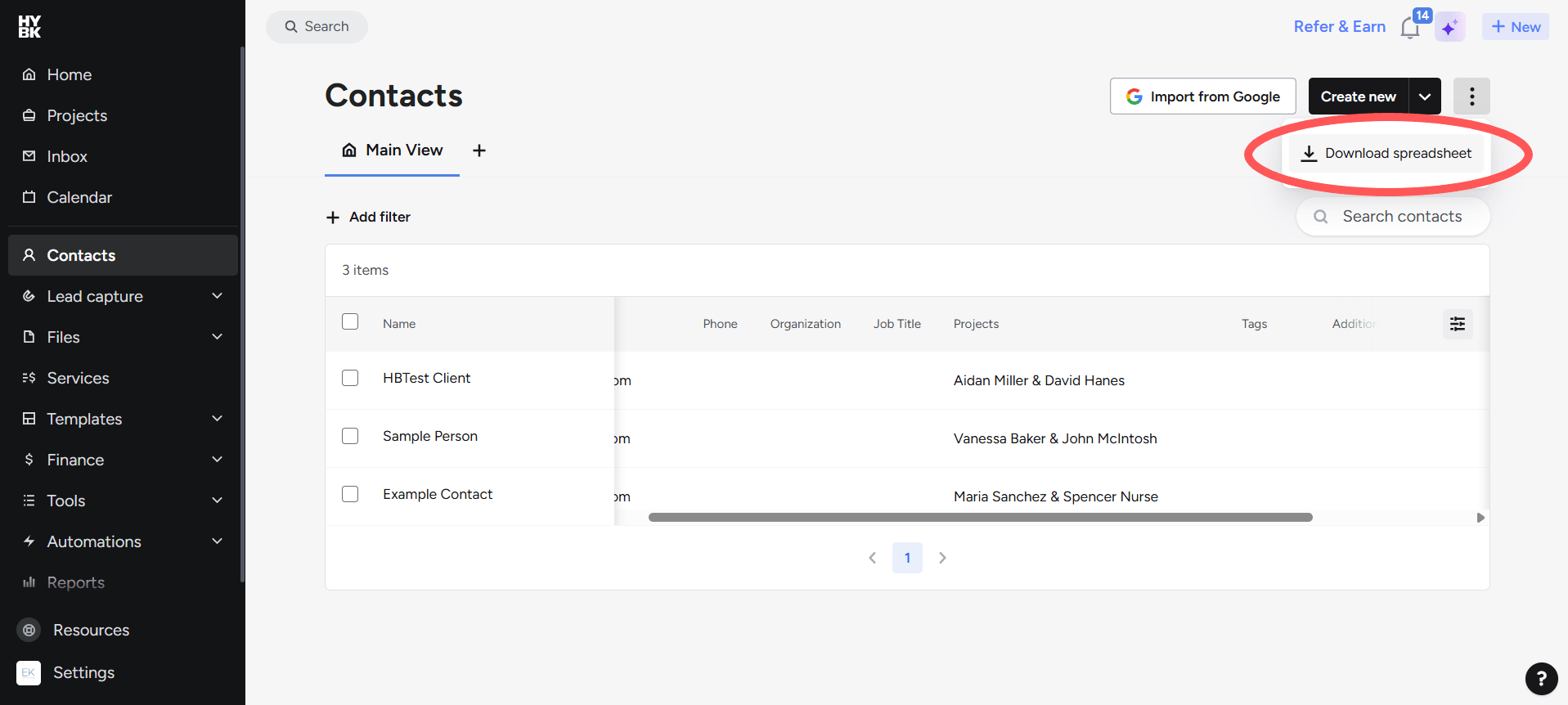
Export your contact list from HoneyBook as a CSV file
In Dubsado:
Go to Contacts, then Import CSV
Upload the file and match the columns to Dubsado’s fields
Check Create a project for each new contact for active clients so it automatically creates a project for each one. For past clients and old leads, you can leave it unchecked
💡Tip: Download your tagged active clients as one file and everyone else as another. Import the active clients with Create a project for each new contact checked, and the rest without it.
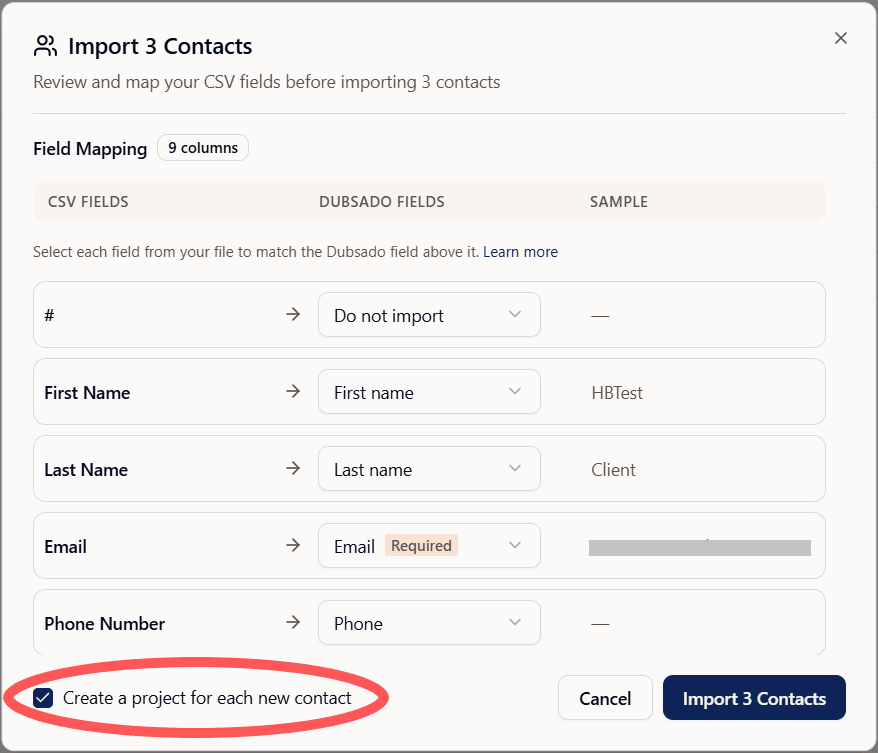
Check this box for clients you want to create a project for - usually active clients
How do you move completed clients?
Your completed clients come in with your contact list. Bringing their files over is optional and done by hand, so decide whether you need them in Dubsado or whether keeping saved copies is enough.
If you want them in Dubsado:
Save the files from HoneyBook. Preview each completed form, questionnaire, or contract, click the three dots and select Save page as PDF
Create a project for the client in Dubsado (if they don’t have one already)
Upload the signed contract. In the project under the Project info bar, click the Contract row and choose Upload PDF as signed contract
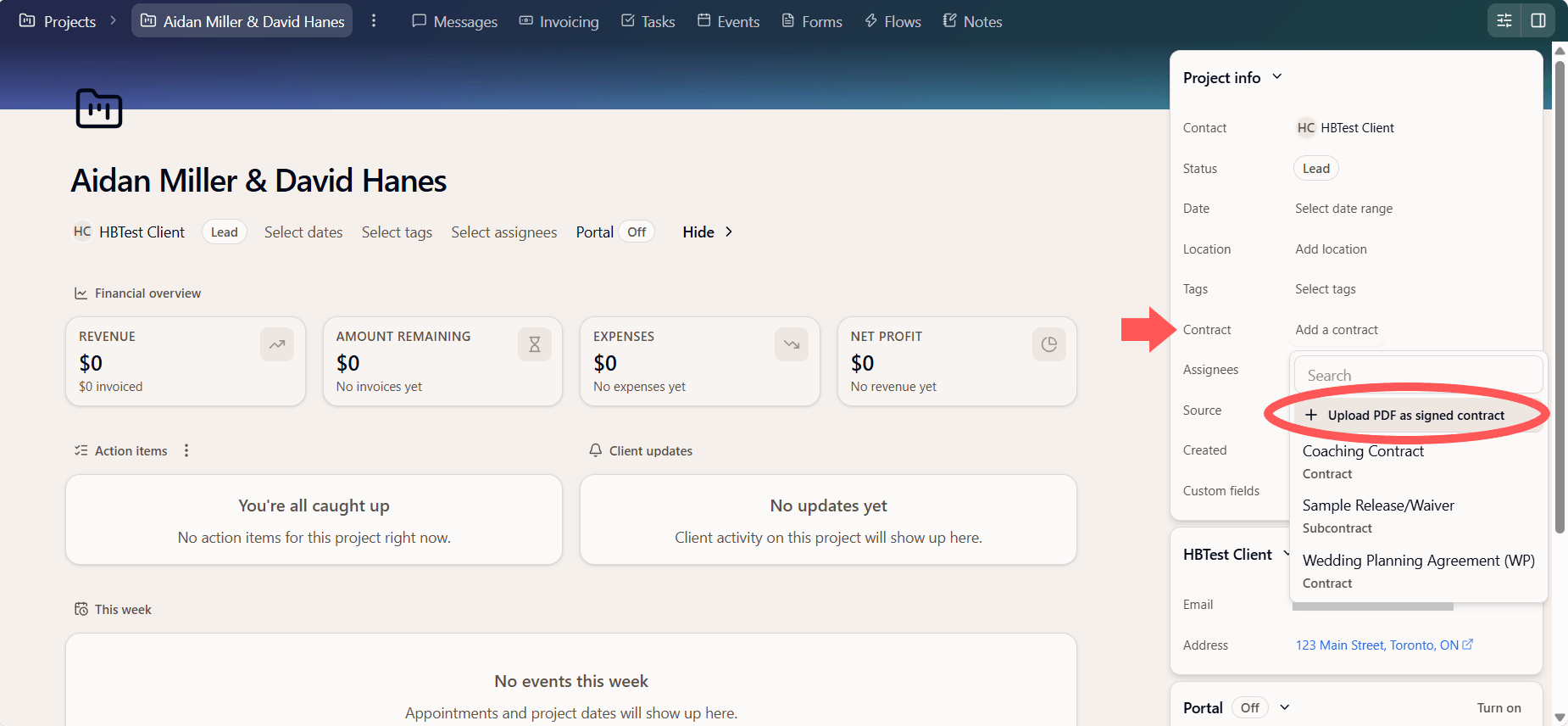
Signed contracts from HoneyBook upload as a record on the client’s project
4. Upload completed questionnaires. In the Forms tab, click the + button, select + New Form from the dropdown menu and upload each PDF. These are read-only records and nothing is sent to the client
5. Recreate the invoice. To track payments in Dubsado, create a new invoice in the Invoicing tab, add the package they bought, then record the payments as paid manually. My guide to invoices in Dubsado covers this
Whatever you decide, download anything you need from HoneyBook before you cancel.
How do you handle clients who are part way through in HoneyBook?
This is the complicated part.
The easiest option: let them finish in HoneyBook. Keep your HoneyBook account open until your current clients wrap up, and send every new inquiry to Dubsado. Your current clients don’t notice a change, and you don’t have to rebuild anything mid-project. Once they’re done, move them over like any other completed client.
If you need to move them now, it’s doable, but each client takes some care:
Create the project in Dubsado with the right status
Upload what’s already complete as PDFs: the signed contract and any finished questionnaires, using the same steps as above
Recreate the invoice. Add the package they purchased, record the payments they’ve already made, then set the due dates for the remaining installments. Use fixed dates so they match what the client agreed to
Set up their flow. Flows are hard to start part way through, but you can make it work:
Apply the flow for that service and click Add and edit, so you can make changes before it starts
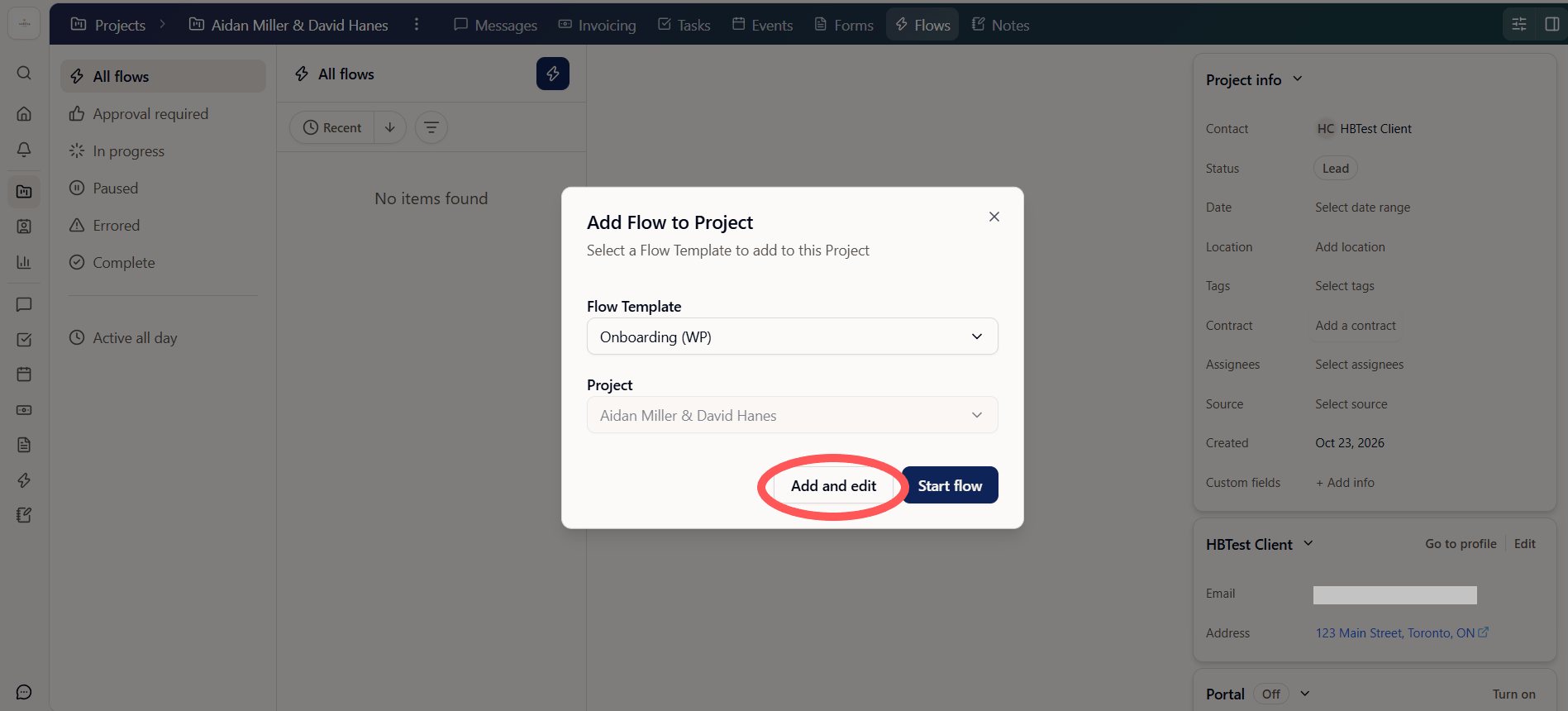
Choose Add and edit so you can make changes before the flow starts
Delete the steps that already happened in HoneyBook, and check the dates on the steps that are left
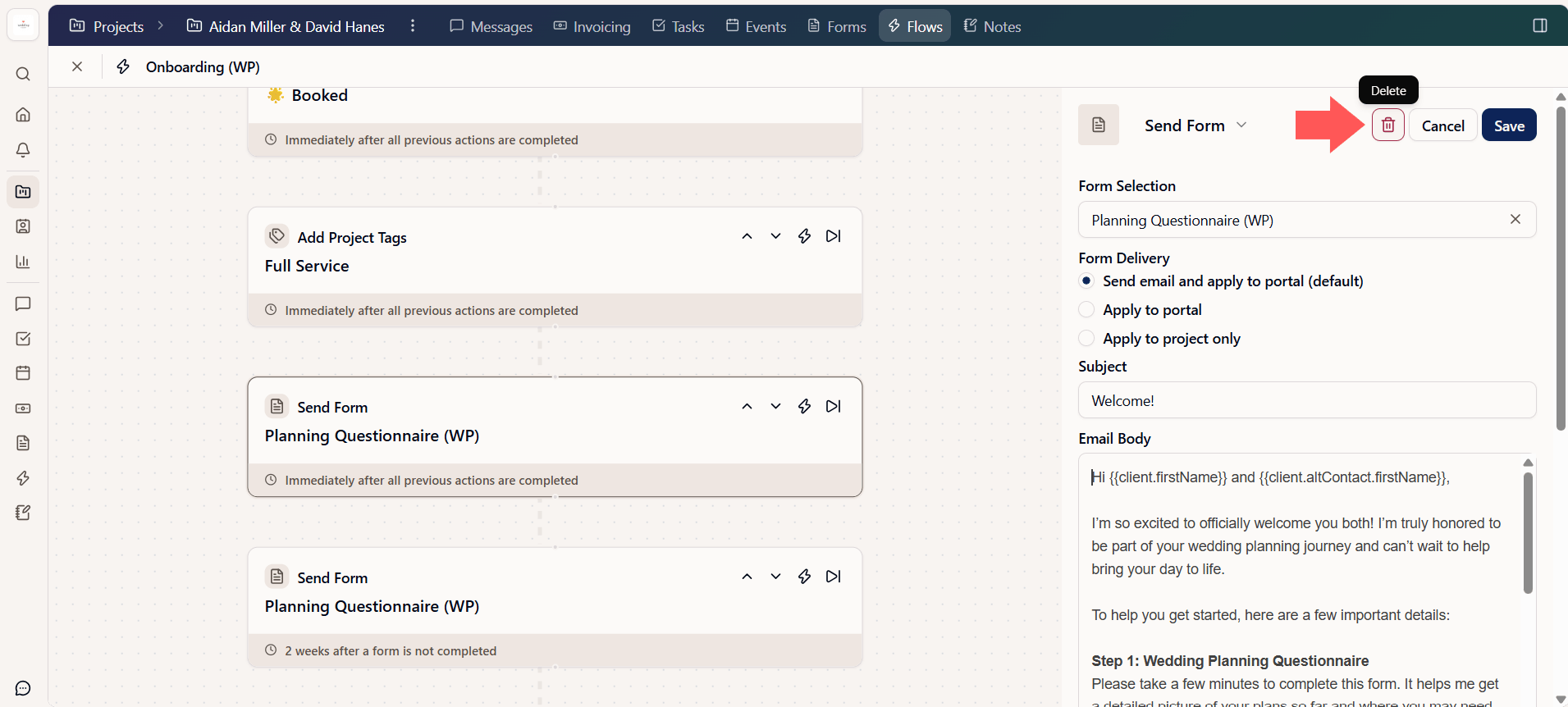
Delete any steps that already happened in HoneyBook, then save
Once everything looks right, click Resume to start the flow
5. Tell your client. Send a short email explaining the move, with their new client portal and invoice link. If they were on autopay in HoneyBook, let them know it doesn’t carry over and they’ll need to set it up again in Dubsado
Do this one client at a time and check each project before you move to the next.
FAQ
Can I import my HoneyBook files directly into Dubsado?
Only your contact list imports. Dubsado can create a blank project for each contact as it imports, but all templates for emails, forms, contracts, packages, payment plans and flows need to be rebuilt in Dubsado.
Do I have to move my past clients?
No. Many people only import the contact list and keep saved PDFs of past files outside Dubsado.
Can I use HoneyBook and Dubsado at the same time?
Yes. Running both while current clients finish in HoneyBook is often the simplest way to switch.
Will my clients’ autopay carry over?
No. Clients need to set up autopay again on their Dubsado invoice.
Want help switching to Dubsado?
If you’d rather have your account built before you move your clients over, take a look at my done-for-you Dubsado setup, and if you’re ready to get started or would like to learn more book a free discovery call.